

Alert rules you can trust
An alerting screen that shows green when nothing was measured is how an incident gets missed. A rule you can trust is one you measured before saving, that says so when it cannot measure, and that is quiet only when you asked it to be. This is how to write one in BROKA.
Pick the metric from the catalogue, scope the rule to a set, give it a hold duration, press Check to measure it against your live estate before saving, and then read its state for what it is: not evaluated yet and unevaluatable are answers, not a quiet ok.
Alerting is in both editions. Two parts of it are Commercial: rules scoped to an application, and the Slack, Microsoft Teams and webhook channels. E-mail and the console are in both.
A rule, decision by decision
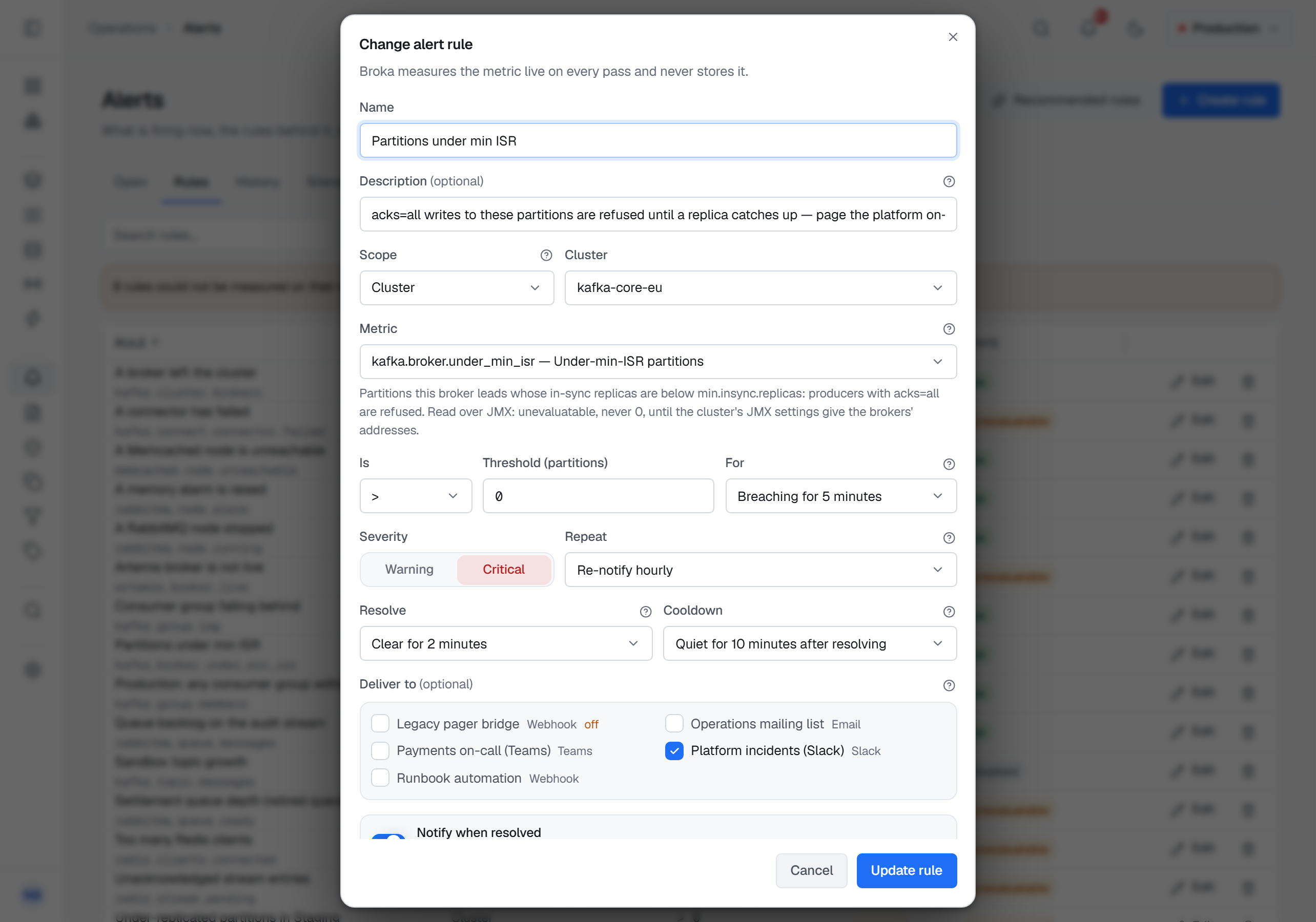
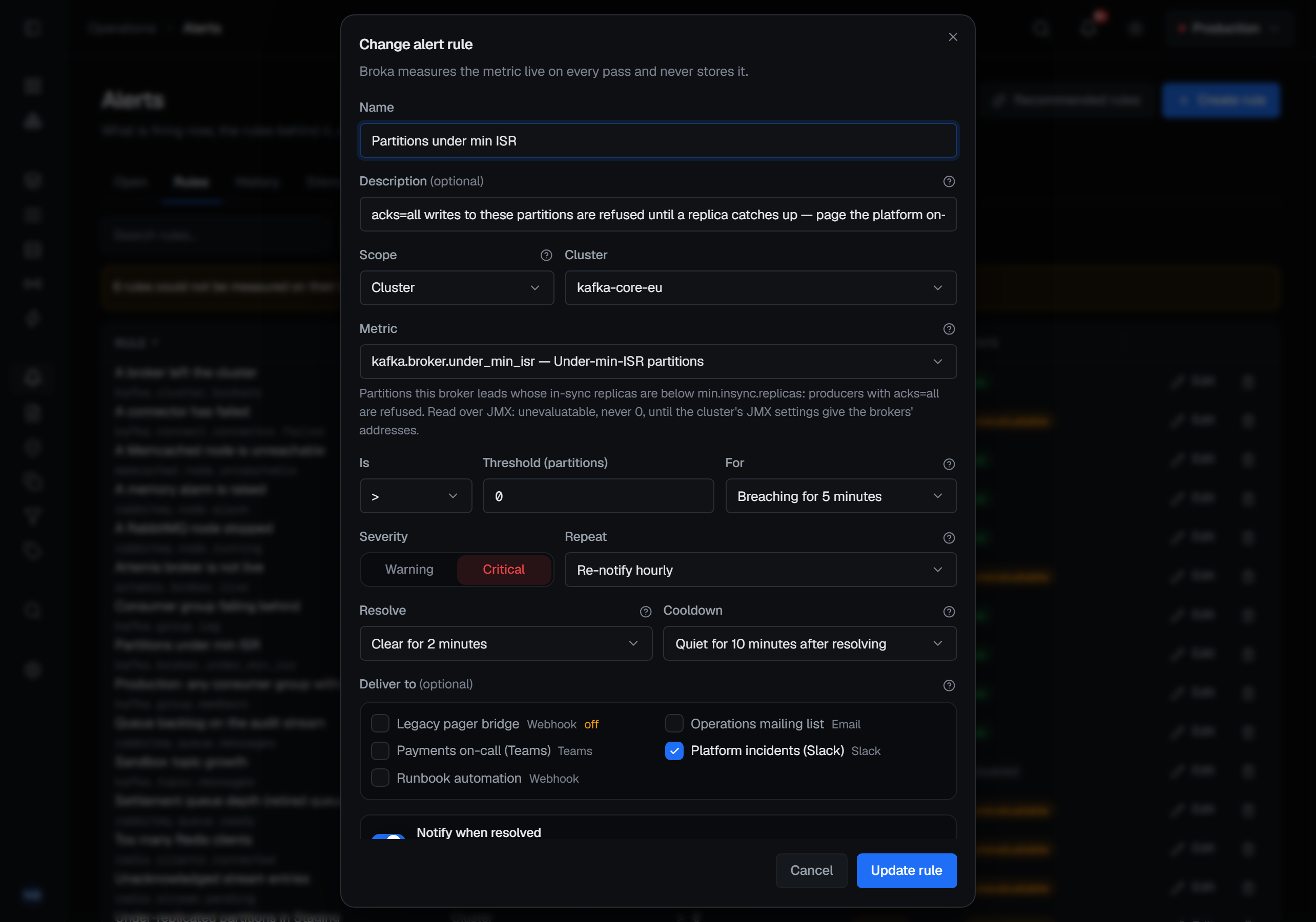
Create rule on Operations ▸ Alerts opens the dialog. Each field is one decision:
| The decision | In the dialog | What it saves you from |
|---|---|---|
| What to measure | Metric, chosen from the catalogue | A key the cluster cannot measure |
| Where | Scope: Environment, Cluster or One resource | A rule that misses next week's topic |
| What is compared | Kind: a value, a change, a comparison with the past, or its usual band | A fixed line on a figure that moves with the day |
| Where the line is | Is and Threshold | — |
| What else must hold | Add a condition, up to three more | Two rules on one queue that fire apart |
| How long it must hold | For | One spike waking somebody |
| How serious | Severity: Warning or Critical | — |
| How often to say it again | Repeat | Being paged every pass, or never again |
| How it ends | Resolve, Cooldown, Notify when resolved | A value hovering at the line becoming ten incidents |
| Who hears it | Deliver to | — |
1 — The metric comes from a catalogue
The metric is chosen, never typed, and the list shows only what this console can measure on the chosen scope: a cluster's platform decides which metrics exist on it, and a rule on one resource is offered only metrics that describe a resource. The metric shows its description, and the threshold field names its unit.
Fill in Description too: it is the first thing read by whoever meets the alert at three in the morning.
2 — Scope a set, not an object
A rule scoped to an Environment or a Cluster names a set, so it covers resources that do not exist yet. One resource takes the exact name on the cluster — one resource, not a pattern — and components such as a Kafka Connect cluster or a connector are picked from a list of what the cluster has. A rule over an environment measures each cluster on its own: one cluster's incident never resolves another's.
In Commercial, a rule can also be scoped to an application.
3 — Draw the line, and make it hold
Is offers >, ≥, <, ≤, = and ≠. Not equal is for a figure with one right value, such as a cluster's active controllers, which should be exactly one.
Kind, beside the metric, decides what the threshold is compared with: the reading itself; how far it moved over the last 5 minutes to 24 hours, in percent or in its own unit — Risen by more than, Fallen by more than; how far it is from this time yesterday or the same hour last week; or whether it left its usual band for the hour over the last seven days. The last three need the metric history, and read not enough history yet until it holds what they compare with — neither firing nor clear.
Add a condition adds up to three more, all of which must hold on the same resource at once: queue depth above 1,000 and no consumers is one rule on one queue. It offers only the metrics that land on the same kind of resource as the first.
For is how long the breach must last: Fire on the first breach, or Breaching for one minute up to one hour. A new rule starts at five minutes. Without a hold, a single spike wakes somebody, which is how an estate learns to ignore its own alerts. Firing at once is right for a figure that is already a state — an offline partition is an incident on its first reading.
4 — Decide how it speaks, and how it ends
Repeat is Notify once, or re-notify hourly, every six hours or daily while the alert stays firing.
Resolve keeps an alert open until the figure has been clear for a while — Clear for 2 minutes by default. Cooldown keeps an alert that reopens on the same target soon after resolving on the console only, without sending it again — Quiet for 10 minutes after resolving by default. Together they make a value hovering at the threshold one incident rather than one per crossing. Notify when resolved, on by default, tells the channels that heard about an alert that it is over.
Deliver to lists the channels set up in Settings ▸ Integrations. With none ticked, the alert appears on the Alerts screen and is sent nowhere else.
5 — Press Check before you save
A threshold is a guess until it is measured against the estate you actually have. The As of now panel at the foot of the dialog does that: Check measures the draft live and writes nothing. It answers in one line — how many targets matched, how many would fire, and how many are unmeasurable — with the first rows beneath it, and a chart of the last six hours of the first five targets, with the threshold across it when the rule is one plain threshold. It decides a draft's conditions as the evaluator will, so a trend with no history yet says so here.
The counts describe every target even when the rows are cut short, because how many targets a rule would fire on is what its author is there to learn. A target whose figure cannot be read is named as unmeasurable, not left out.
6 — Read the state, not the colour
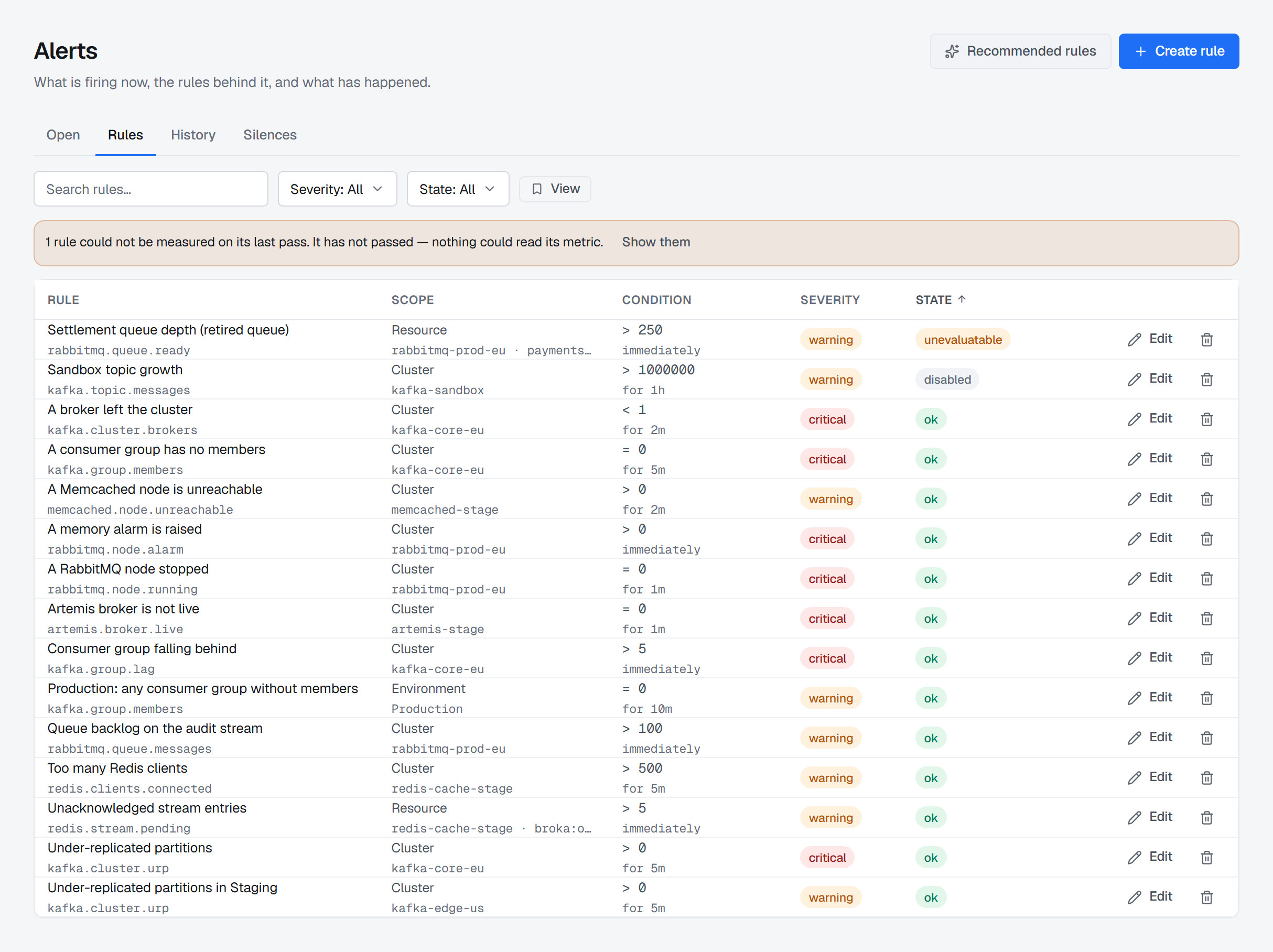
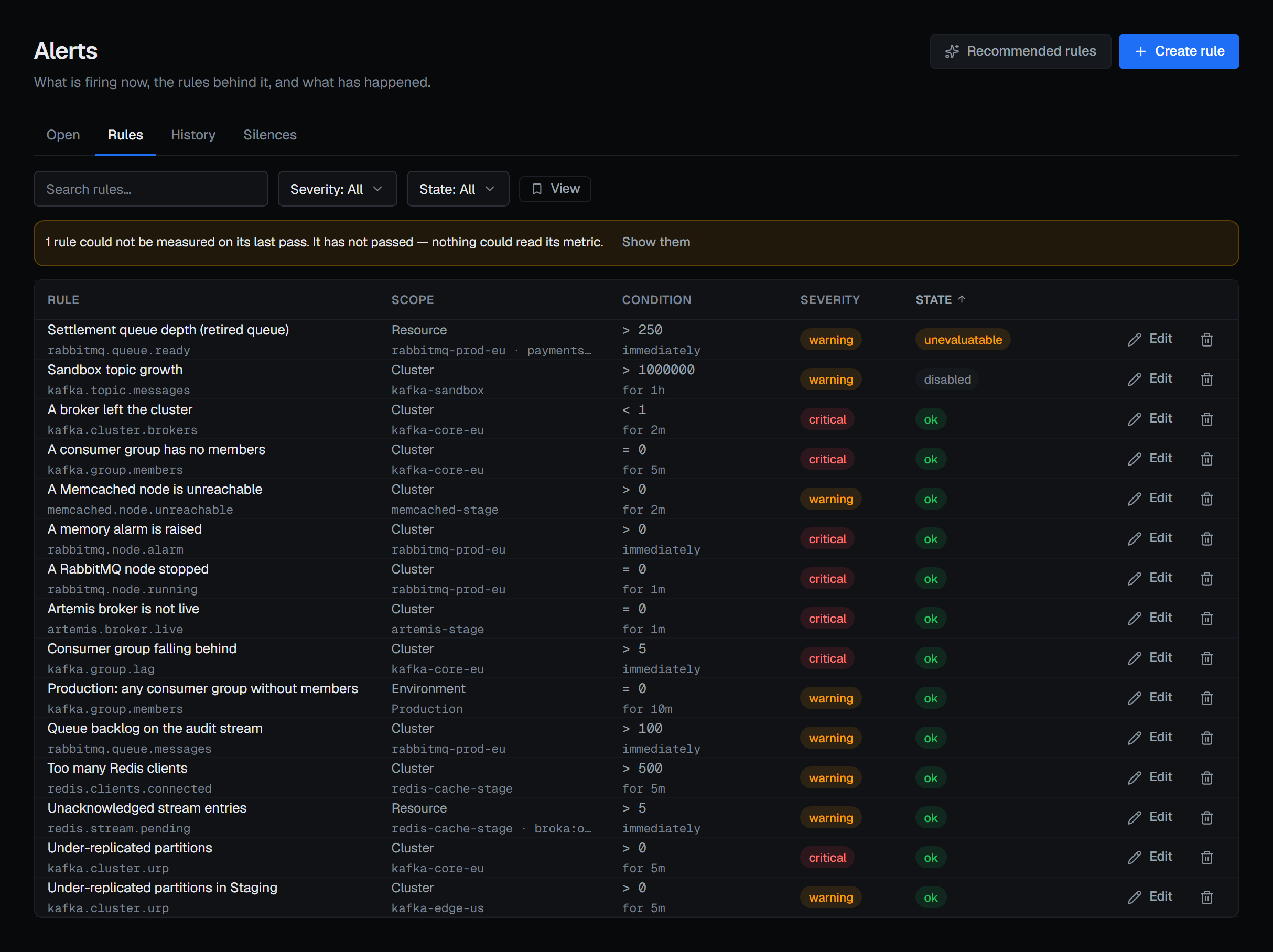
Each rule on the Rules tab carries a state:
- ok — the evaluator reached it and it holds.
- not evaluated yet — nothing has measured it. That is not the same as it having passed.
- unevaluatable — its metric could not be read, with the reason on the row. When only some targets fail, the rule says how many: "3 of 47 targets could not be measured."
- stale — not evaluated for three evaluation periods. Its last state is not a statement about now.
- disabled — kept, with its threshold and scope, and not evaluated.
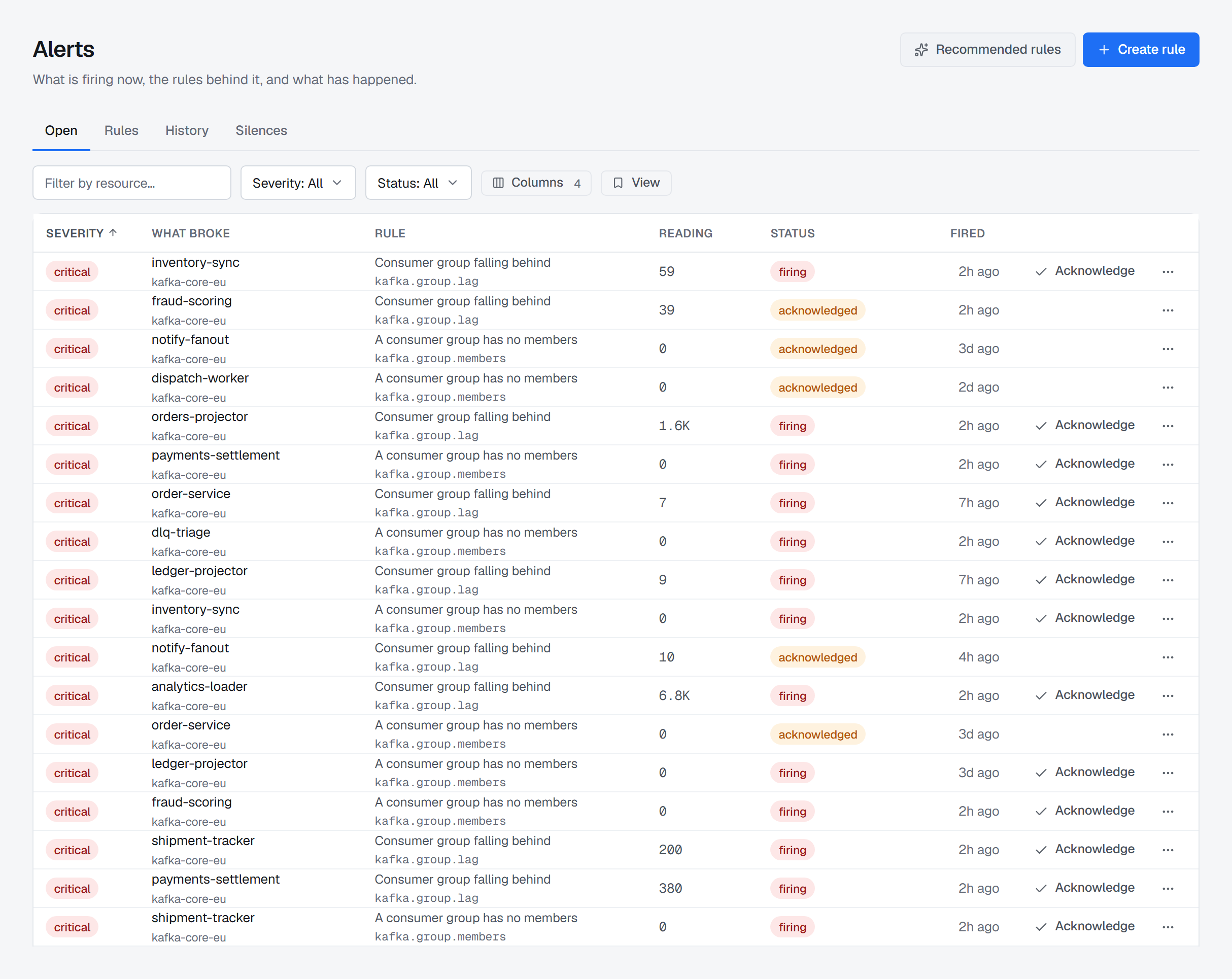
When any rule could not be measured on its last pass, a line above the list counts them, and Show them applies the Unevaluatable state filter — the difference between a quiet estate and a blind one.
7 — Silence for maintenance; do not disable
A planned upgrade should not page anybody, and a rule switched off is easily left off. On the Silences tab, Silence alerts covers Everything, an Environment, a Cluster, One resource or One rule, for thirty minutes up to twenty-four hours, with a Reason that is required. The window expires on its own.
Inside it, rules keep being evaluated and a breach is recorded as Suppressed — notifying nobody. If it is still breaching when the window ends, it is notified then. Disabling or deleting a rule is different: it closes the rule's open incidents, because nothing is watching them any more.
8 — Start from the recommended rules
Recommended rules, beside Create rule, offers the handful worth watching on a cluster from day one, for its platform. For Kafka they include Under-replicated partitions, A consumer group is falling behind and A consumer group has no members, with more once a Kafka Connect cluster, a Schema Registry or JMX is set up. Each states its threshold and why, and nothing is ticked for you. They become ordinary rules scoped to the whole cluster, with no channel — edit them to add one.
Where an alert goes
The console is always a destination: an open alert lands on the Open tab, the bell in the top bar and the dashboard's alert card whether or not a channel exists. E-mail goes through the installation's own SMTP relay in both editions; Slack, Microsoft Teams and webhook channels are Commercial.
On an open alert, Acknowledge records that you have seen it and leaves the metric and the alert alone. Resolve closes that occurrence; if the target is still breaching, the next pass opens a new one.
Who may do what
| Permission | Lets a role |
|---|---|
alerts.view |
See rules, alerts and silences |
alerts.respond |
Acknowledge and resolve alerts — for an on-call rota that should not change the rules |
alerts.manage |
Create, edit and delete rules and silences, and run Check |
integrations.manage |
Configure the channels, which hold credentials |
Rules and alerts follow what they watch: you see the ones on what your role lets you see, and you cannot create a rule, or move one, to watch something you cannot see.
What this guide does not cover
- The metric history — what the evaluator keeps, for how long, and where it is drawn, on the Alerts page.
- Setting up channels — described with the other settings.
- Investigating an incident once it fires — see incident investigation.
The Alerts page describes the screen in full, and Alert metrics every metric a rule can watch.
Applies to BROKA 1.0.1 and later · Community and Commercial. Application-scoped rules and the Slack, Microsoft Teams and webhook channels are Commercial.