

Initial setup
Updated 1 October 2026 · applies to 1.0.0 · Community and Commercial
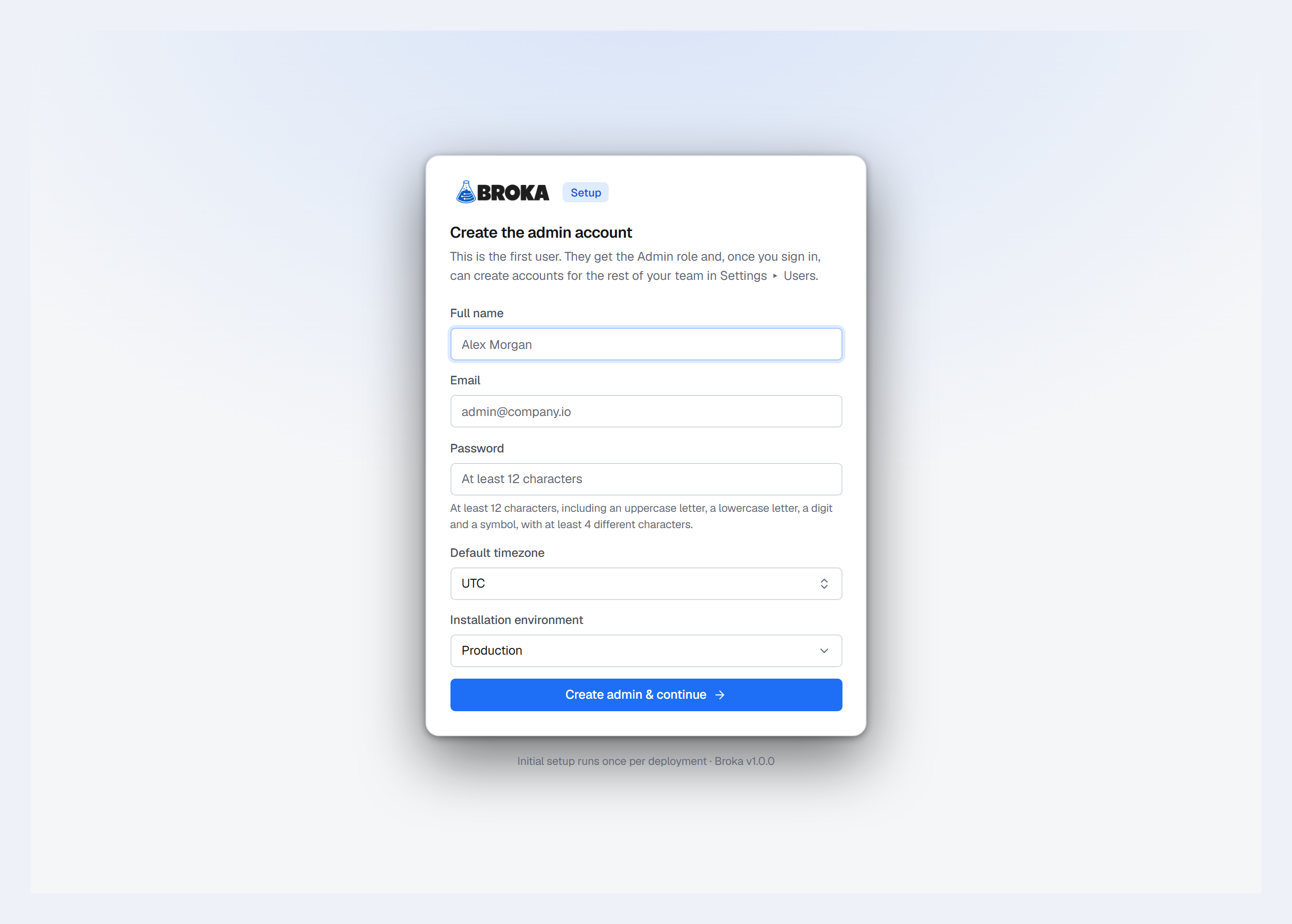
The first time BROKA starts against an empty database it has no accounts, so it has nothing to authenticate against. The first screen exists to fix that, and it does exactly one thing: it creates the first administrator.
Every route leads here until it is done
While setup is required, every URL redirects to the setup screen — including the sign-in page. There is no way to skip past it and no anonymous state to work in, because an operations console with no accounts is not a state worth being able to reach.
Once it is done the redirect reverses: the setup screen itself sends you to sign-in, and it is never shown again.
What it asks for
Full name — optional, and used to address you in the interface.
Email — this becomes your sign-in identity.
Password — it has to meet the installation's password policy, which is stated beneath the field. On a new installation that is the default: at least 12 characters, with an uppercase letter, a lowercase letter, a digit, a special character, and at least four distinct characters. Each rule is checked as its own message, so a rejected password tells you which rule it missed rather than restating all of them. The policy is changed later in Settings ▸ Security.
Default timezone — starts at UTC. Every date and time in the console is rendered in this one zone, for everyone who reads it, so two people looking at the same timestamp are reading the same clock. There is no per-person override; Settings ▸ System changes it later.
Installation environment — what this installation of BROKA is: Production, Staging, Test, Development, Local or Disaster recovery, with Production chosen until you change it. It is not one of the environments your brokers are grouped into; it describes the console itself, and every audit record the installation writes names it, so records from two installations can be told apart. Settings ▸ System changes it later.
It creates an account, not a session
On success you are sent to the sign-in page and sign in with the credentials you just chose. The console does not log you in automatically, so the password is used once before it is relied on — which is where a typo in a password manager surfaces, rather than at the next sign-in.
If two people open it at once
The first submission wins and the second is sent straight to sign-in, as though its own setup had just finished. Nothing is created twice and nothing is overwritten. This is a real case on a shared deployment, not a theoretical one, so it resolves rather than showing an error.
After this screen
You have one administrator and nothing else: no brokers, one environment (Development, open) to put them in, and no other people. Connect your first broker is the next step, and User and team setup is the one after it.