

Topics
Updated 10 October 2026 · applies to 1.2.0 · Community and Commercial
Topics, under Kafka in the sidebar, lists every topic on the cluster and opens each one on a page of its own. The list is the screen most people leave open, and it is built to be shaped to the question you are currently asking rather than to show everything at once.
Choosing what you look at
The topic name is always there. Beside it you can turn on partitions, replication factor, message count, size, labels, cleanup policy, retention time, retention bytes, minimum in-sync replicas, produce rate and last activity — and turn off the ones you are not using. Your choice of columns, their order and the page size are remembered, so the view you built is the view you come back to. Replication factor and minimum in-sync replicas appear only when the cluster's topics differ in them: where every topic has the same value, the column would repeat it on every row. A topic with several labels shows the first and +n for the rest, every label on hover, so its row stays one line.
Topics kept by the cluster's own tools — names beginning with an underscore, such as _schemas or
_connect-offsets — are hidden until you press Show internal, which says how many there are; shown, each
carries an Internal badge. Kafka's own __consumer_offsets and __transaction_state are never listed.
Partitions and replication factor come with the list itself; most of the others cost the broker more. When the list is read live rather than from the snapshot described below, BROKA loads it first and fills the expensive columns in behind it, so the page is usable while the counts are still arriving.
Labels are not Kafka's: Kafka has no such thing. They are the key–value labels written for a topic under Operations ▸ Resource Metadata. The search box matches a label's key or value as well as the topic name, and a Label filter appears once any topic on the connection has one. The Status filter picks out topics with a partition that has no leader, and the line under the page's title counts them when there are any — 25 topics · 1 unavailable.
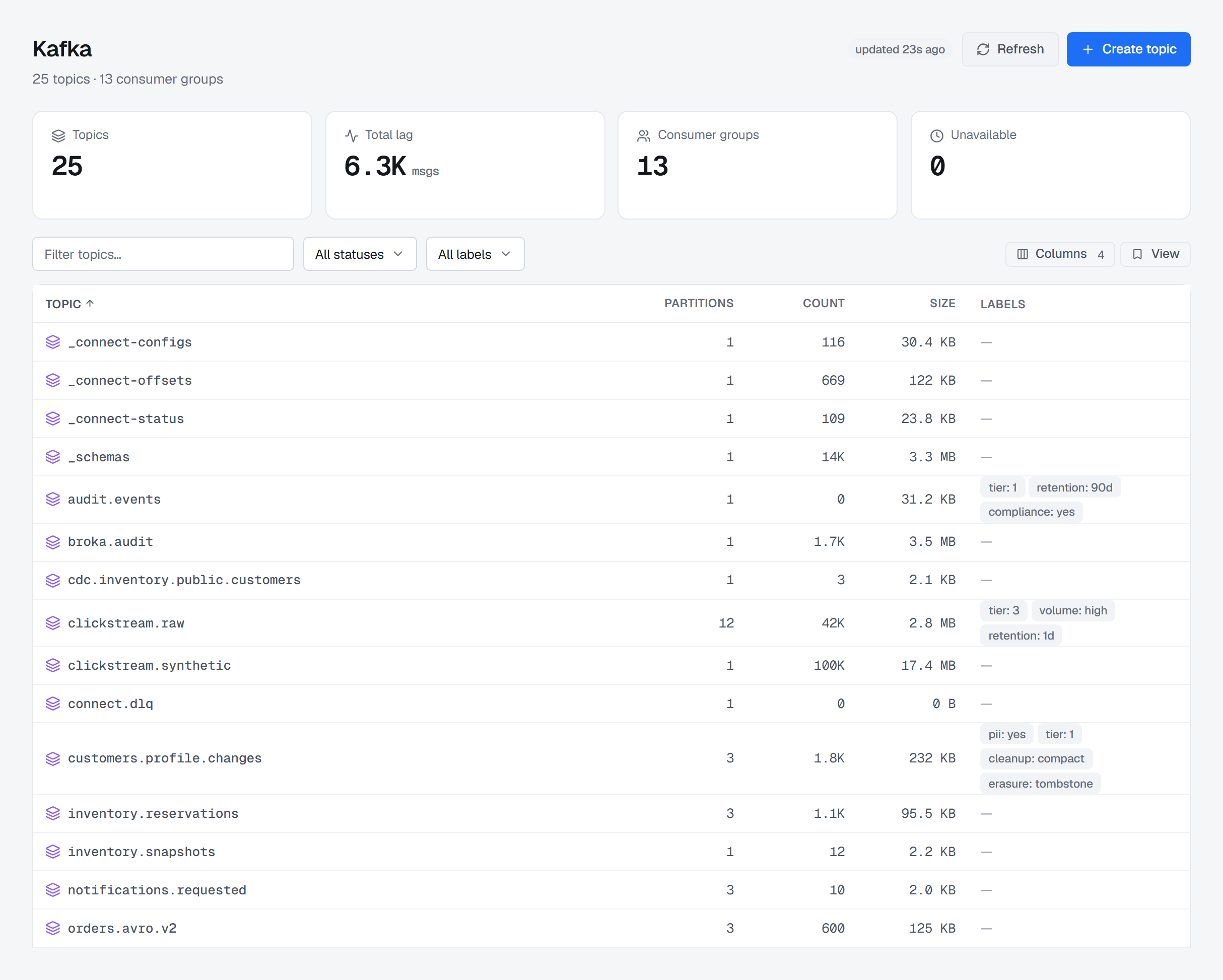
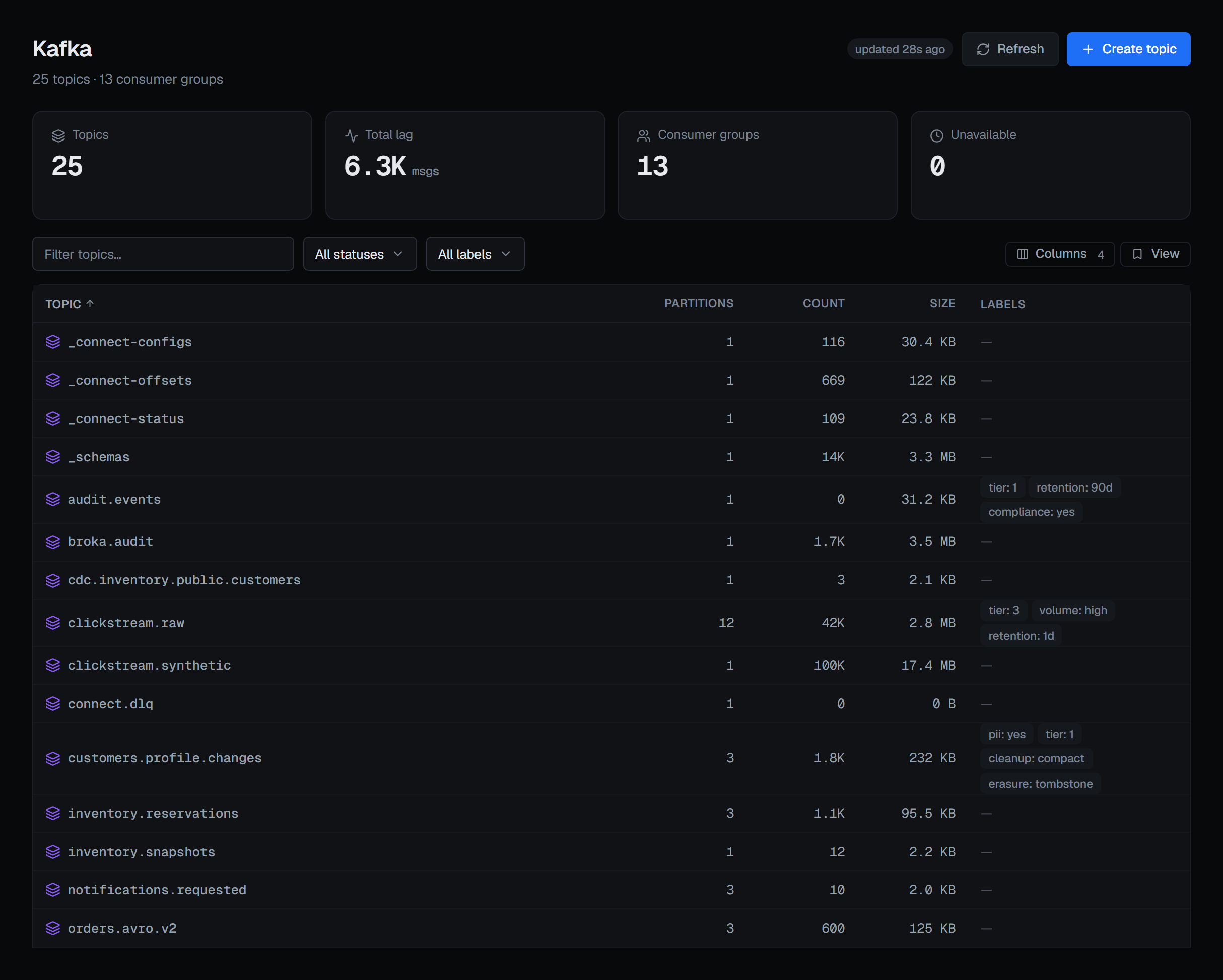
A read returns at most 500 topics. On a larger cluster the page says how many of how many it is showing; the search box then filters the loaded rows as you type, and pressing Enter searches every topic name on the cluster. While that search applies, the line under the title counts the matches (3 matching topics); emptying the box ends it.
A column that could not be measured shows "—" rather than a number. Message counts, sizes and retention each come from a different probe on the broker, and any one of them can be unavailable without the others failing. When that happens the cell is empty and honest instead of quietly reporting zero.
Produce rate is derived, not read: BROKA compares each topic's offsets between two passes. That makes it available on any cluster with no exporter or agent involved, and it is why the column needs a second reading before it can show anything. Each connection keeps its own readings, however many topics and groups the estate has, so the rate keeps being measured on a large one.
Freshness
The list is served from a snapshot that BROKA refreshes about every thirty seconds, and it tells you how old what you are looking at is. When you need this second's answer — you have just created a topic, or you are watching something drain — Refresh reads the brokers directly and the chip changes to say so.
Looking at one topic
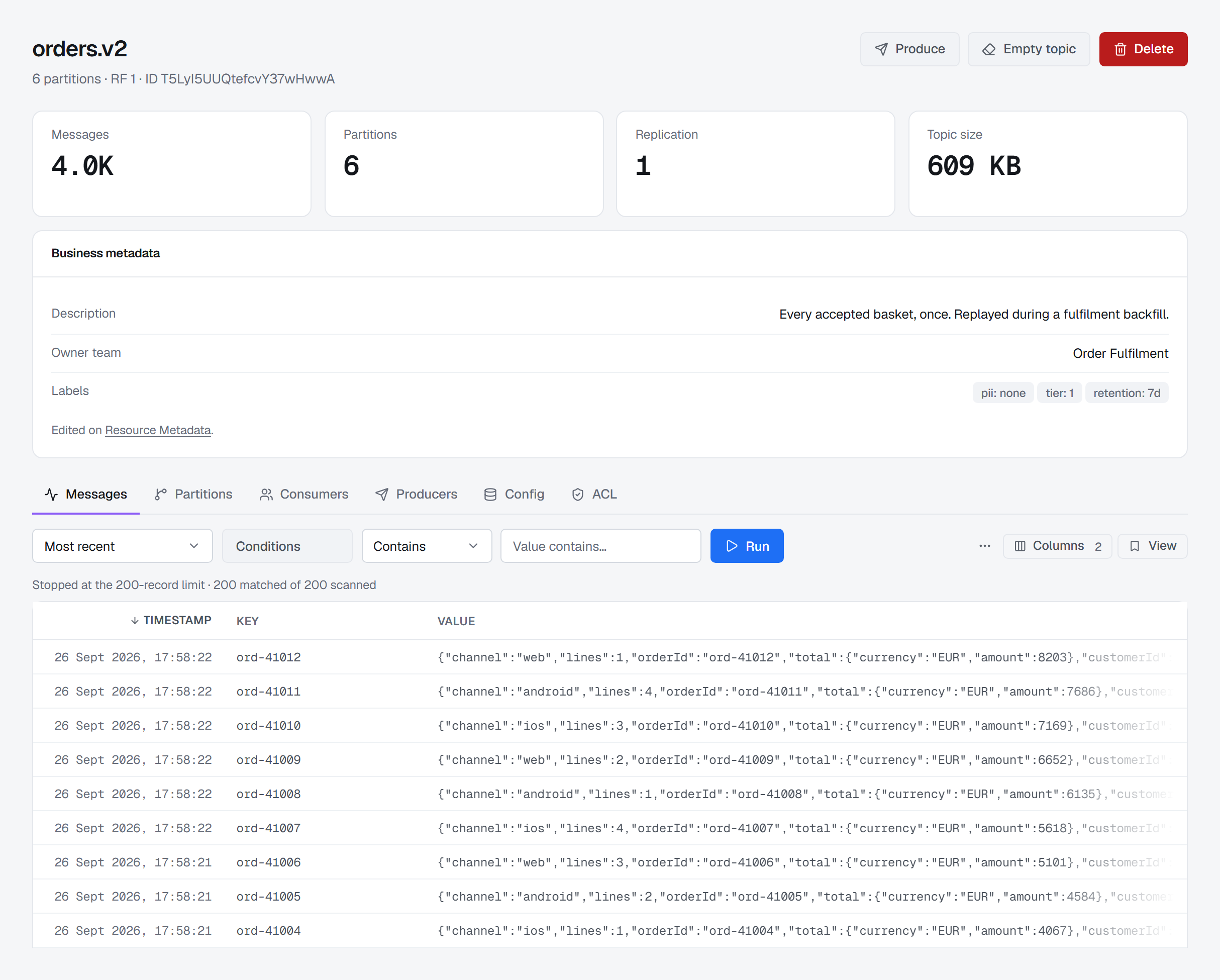
A topic's page opens on its messages, with its partitions, the consumer groups reading it, the producers writing to it, its figures over time, its configuration and its ACLs each a tab away. The header carries the numbers you would otherwise go looking for: message count and size, with the partition count and replication factor in the line under its name. Delete and Empty topic are in the ⋯ beside Produce. Where somebody wrote the topic's business metadata, it is one line under the figures — description, owner team and labels — so the messages stay on the first screen. The Partitions and Consumers tabs have a page of their own, Partitions and leaders, and so does the Producers tab, Producers and open transactions.
The line under the topic's name gives its partition count and replication factor and, where the cluster reports one, the topic id Kafka assigned when the topic was created. A topic deleted and created again under the same name gets a new id, which is how the two are told apart.
Size is the sum of every replica, so a topic with three replicas of one gigabyte of data reports three gigabytes. That is what the topic actually occupies on your disks, which is the number that matters when you are deciding whether it is the reason a broker is full.
Message count is the distance between the earliest and latest offsets. On an ordinary topic that is the number of messages in it. On a compacted topic it is higher than what a consumer reading from the start would receive, because the offsets of compacted-away records are still counted.
With JMX set up, the header adds the topic's own rates — bytes in and out and messages in per second — read
from the JMX agents of the brokers that lead its partitions when you open the topic and while it stays open; the ?
beside the topic's name says where they come from. A rate needs every leader's answer: when one did not answer, the tile reads a dash and
says how many of them did. Without JMX the three tiles are not there. The list never shows them — reading every topic's
rates from every broker is the cost the list is built to avoid. See JMX metrics.
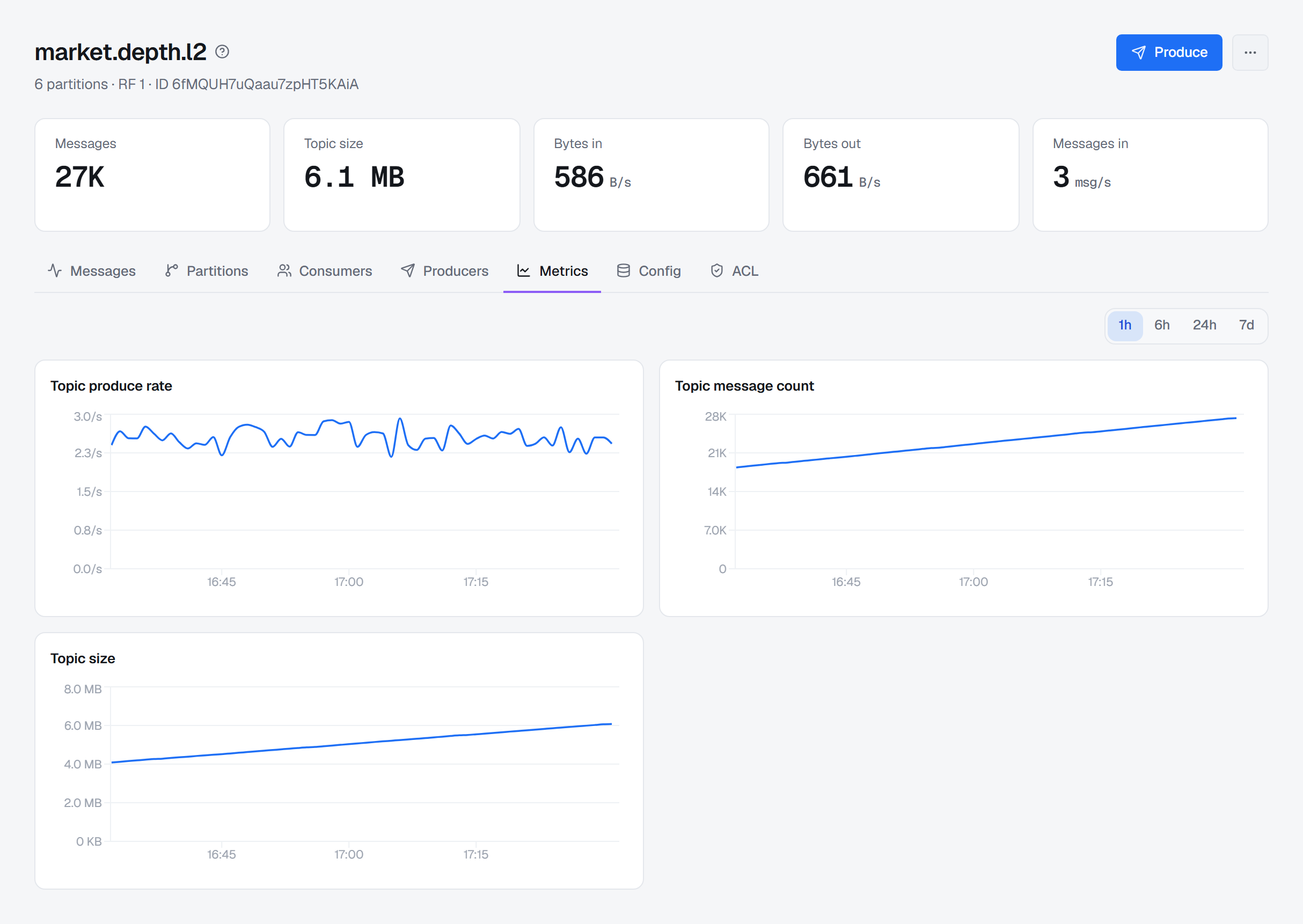
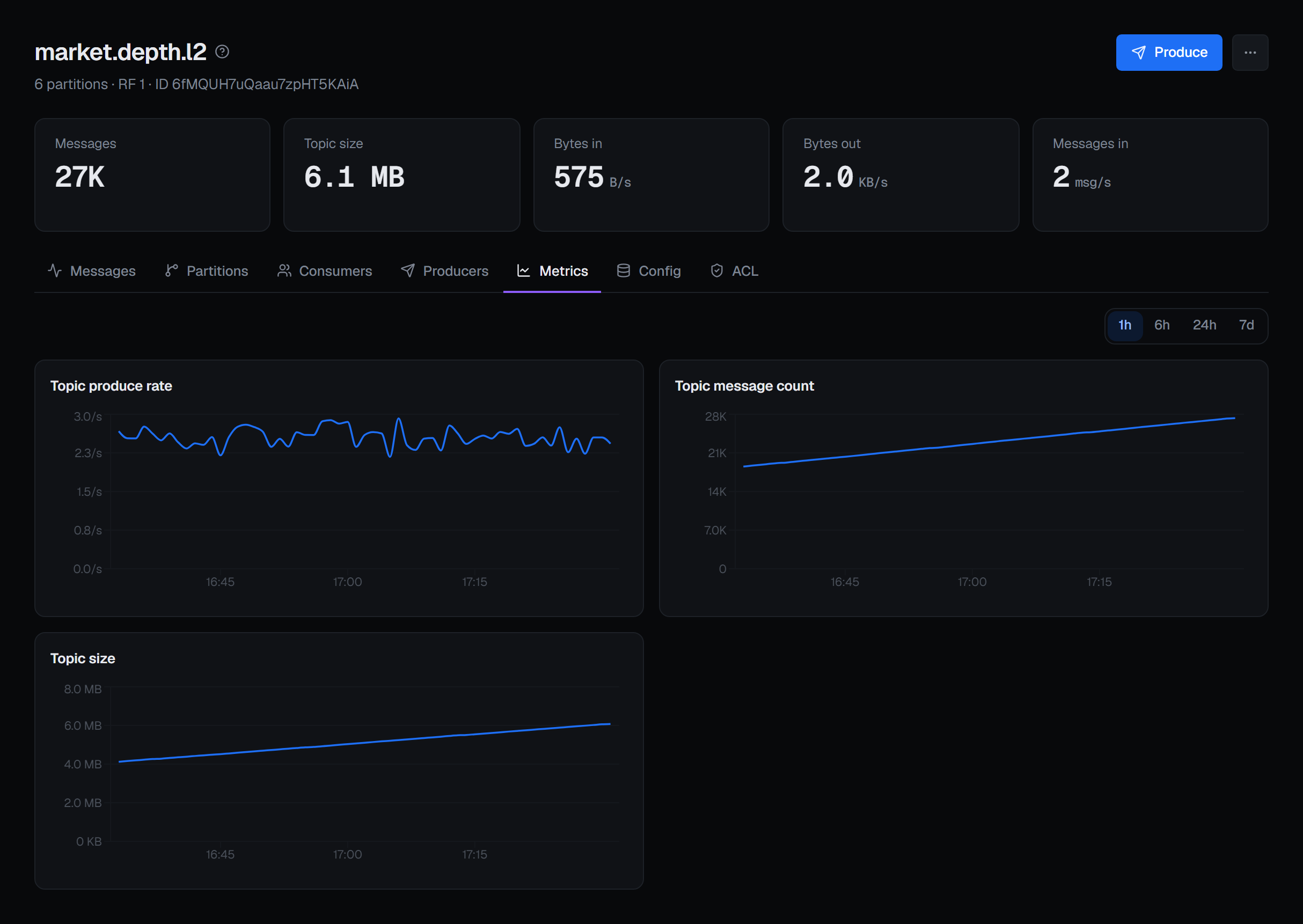
The Metrics tab charts the topic's figures from the metric history: its produce rate, messages and size by default, and any figure an alert rule watches on it. One range picker — 1 hour, 6 hours, 24 hours, 7 days or the retention — sets every chart. A rate that read zero over the whole range is one line — No activity in the last 6 hours — rather than a flat chart. A topic beyond the 1,000 series a connection keeps has no chart, and the tab says so.
Configuration, and what is actually set
The Config tab groups the topic's settings the way you think about them — retention, compaction, message handling, storage, durability — rather than in the flat alphabetical list the broker returns. It opens showing only the properties that have been overridden, because on a typical topic that is four rows out of ninety, and those four are the ones somebody chose.
Each row says whether the value is an override or the broker's default; only an override is marked, so the changed rows are the ones that stand out. Turn the filter off to see everything, or search for a property by name.
Editing is per property, in a panel that knows what kind of value it is: a list where Kafka has a fixed set, true/false where it is a flag, free text otherwise. Read-only properties show a lock instead of a pencil, and sensitive values are masked.
Every editable property has Reset to default beside Update value. That is a real operation, not a convenience — it removes your override from the broker rather than writing the default back as a new override, which are different states with different futures.
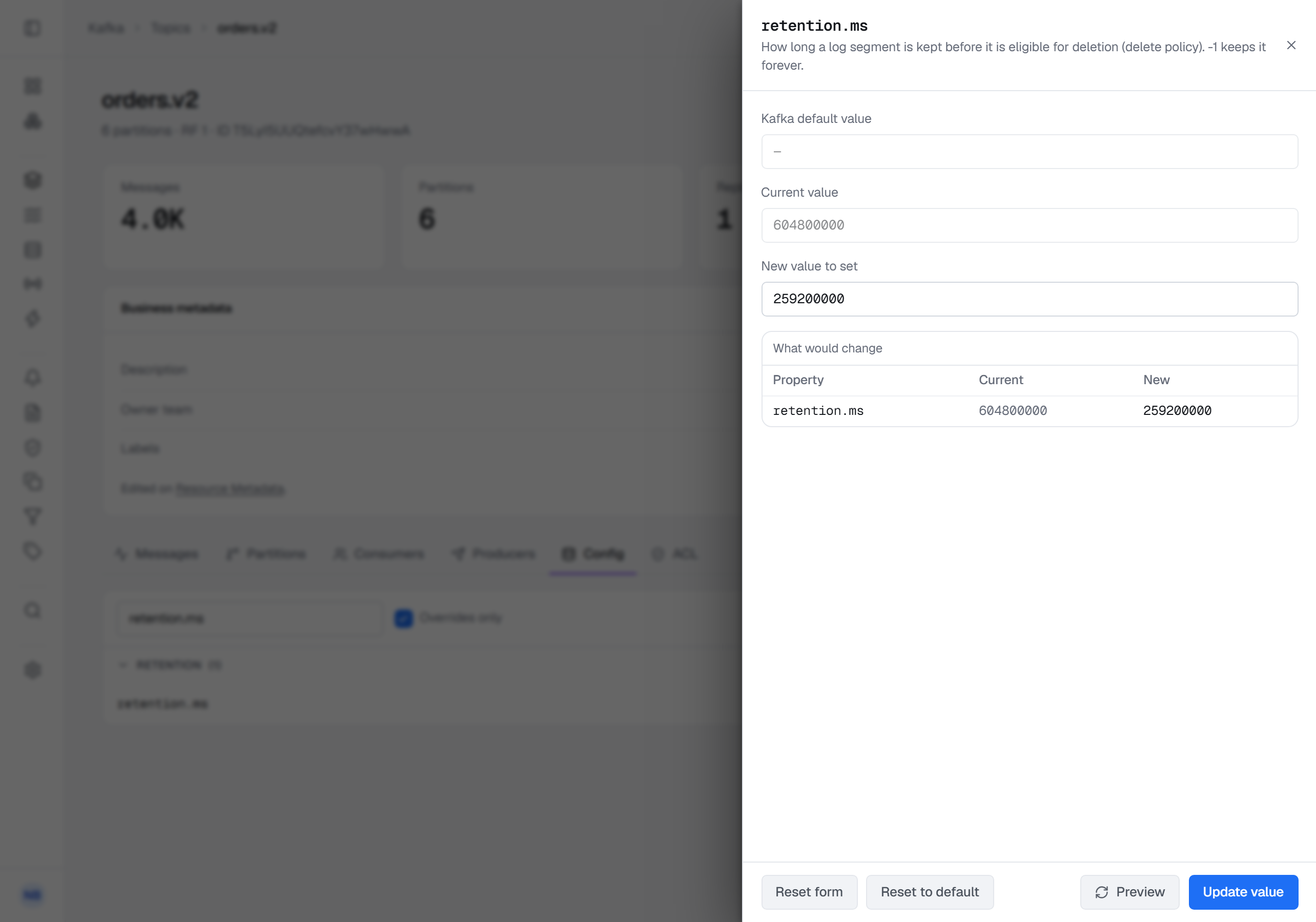
As you type a new value, the brokers check it without writing it. They check the property's name, the value and any alter-config policy the cluster enforces, and either refuse it in their own words or answer with What would change — the property's current value beside the new one, which is where the value held now is read. A value Kafka will not take is refused there, before Update value sends anything. The check writes nothing and records nothing.
Creating a topic
Name, partitions, replication factor and cleanup policy are the first tab; thirty-three further settings across seven groups are the second, and only the ones you actually change are sent — a new topic inherits the rest from the broker rather than being frozen at whatever the form was showing.
The replication factor is offered against the cluster you are on: the default is the smaller of three and your broker count, and the maximum is your broker count, so a single-broker development cluster offers only 1 and says why, rather than accepting 3 and failing at the broker.
Changing a topic that already exists
Adding partitions, on the Partitions tab, is described under Adding partitions: it changes which partition a keyed message lands on, and the dialog makes you acknowledge that before it runs.
Emptying removes records and keeps the topic. Delete records, in a partition's row menu (⋯), empties that partition — the start of its log moves forward, discarding what is behind it and leaving the partition in place. Empty topic, in the header's More actions menu (⋯) beside Delete, does the same to every partition at once, each up to its latest offset, in one request. Both ask for a reason in every environment, and neither can be undone. A run that empties only some partitions names the ones it could not, rather than reporting the topic empty.
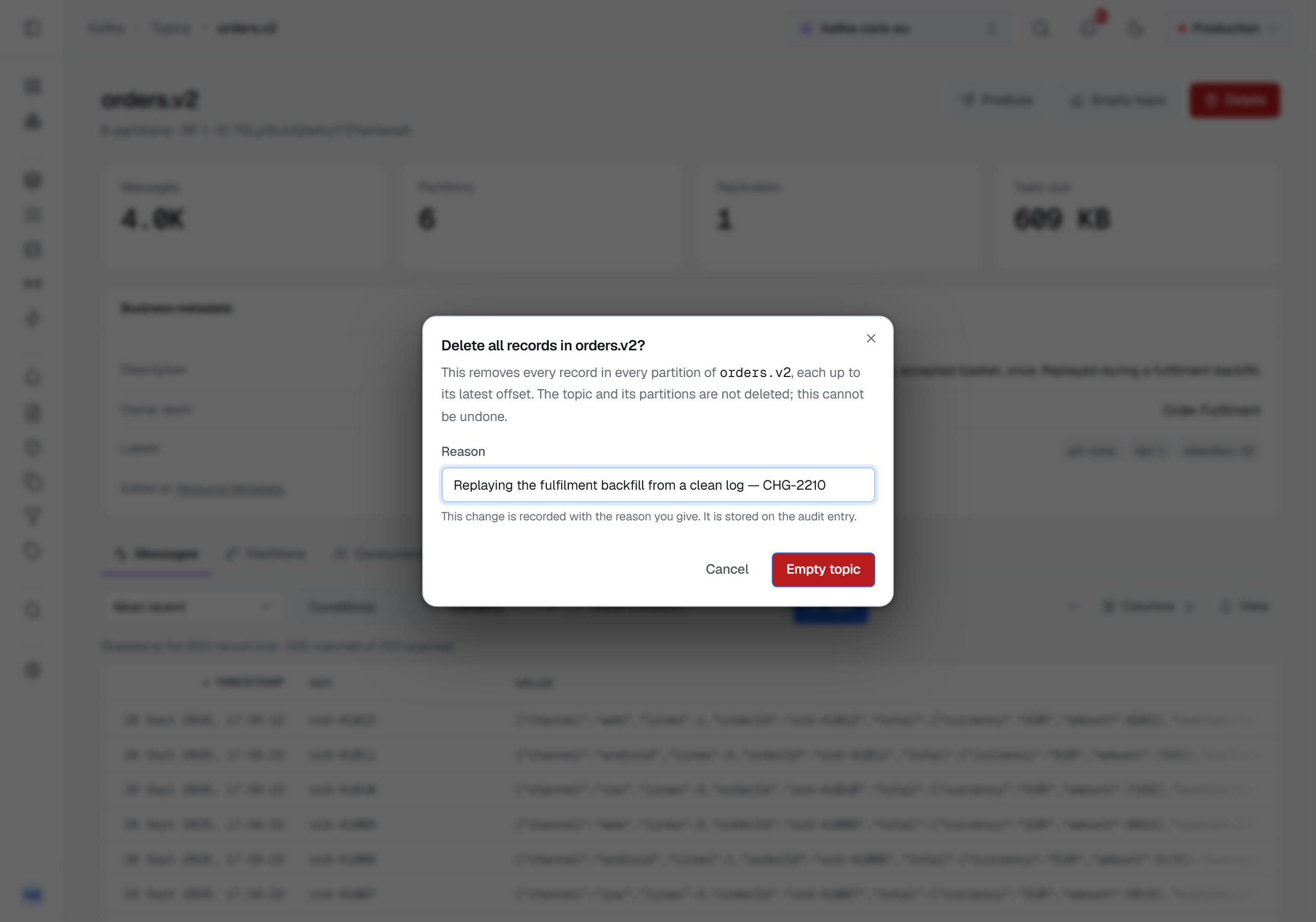
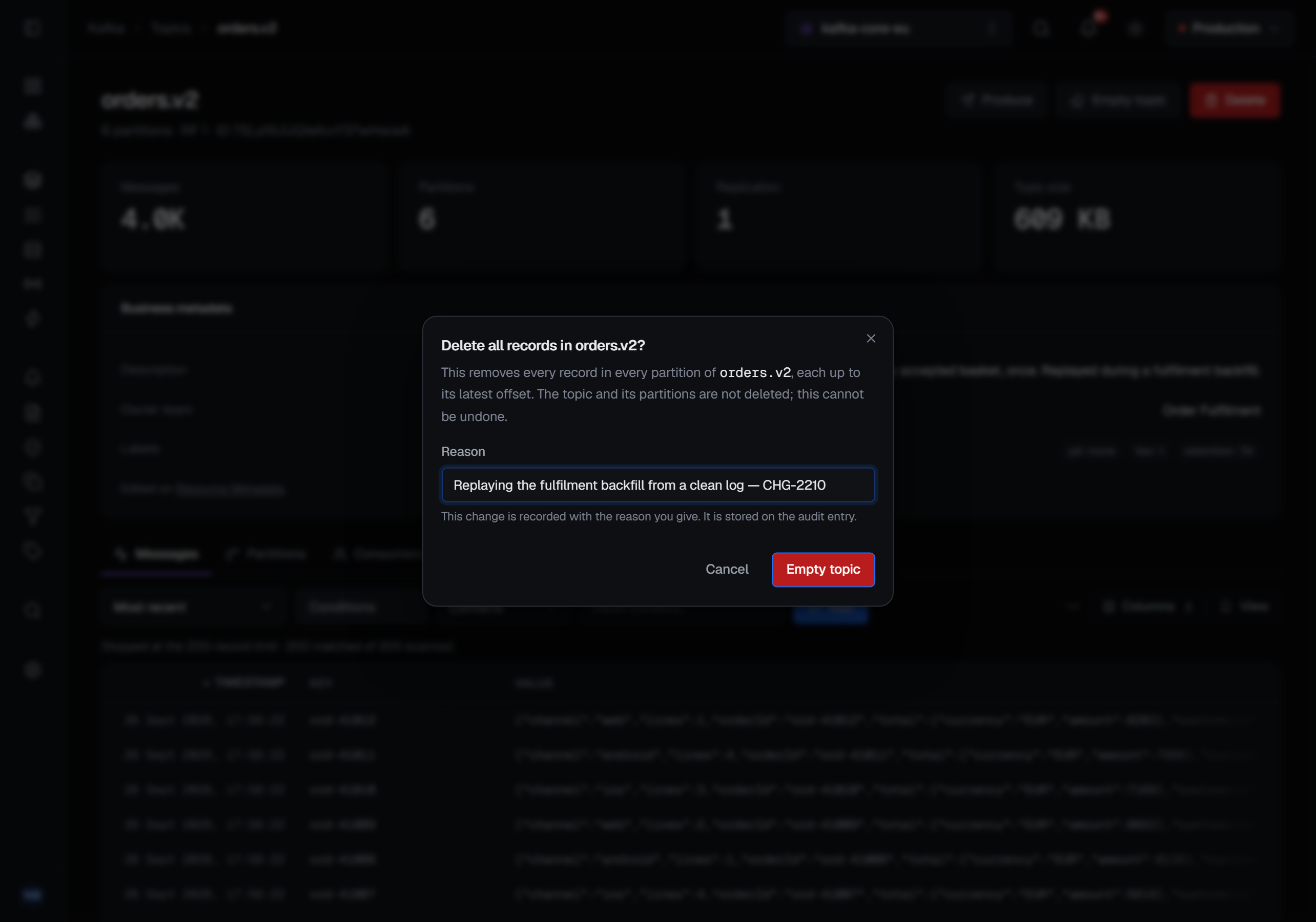
A compacted topic needs one more step, because Kafka deletes records only from a topic whose
cleanup policy includes delete. On such a topic both dialogs say so and ask for an extra
confirmation — a box you tick to say you understand what happens next — and BROKA then switches the
topic's cleanup.policy to compact,delete for as long as the deletion takes, deletes the records,
and puts the policy back to compact.
Either dialog closes once the attempt is over, and the notification carries the broker's own answer — how many partitions were emptied, or the sentence Kafka refused with.
Deleting, also under More actions, requires typing the topic's name exactly, and the dialog tells you how many messages that will destroy before you type it.
ACLs
The ACL tab shows every rule that applies to this topic — matched properly, so a prefixed rule
covering orders.* appears on orders.equity.v2 rather than only on an exact-name match. It is a read-only
view here: it answers "who can reach this topic". Rules are edited from the other direction, per
principal, under Service accounts.
The tab is shown to anyone who may view the cluster's ACLs; someone without that permission is told so rather than shown an empty list. An empty tab means no rules match, not an error — a cluster with no authorizer configured simply has none. When the connection's own identity may not read the ACLs, the tab says the cluster did not allow it, in Kafka's words — not that signing in failed — and the rest of the page carries on.
What gets recorded
Creating a topic, changing its configuration, emptying a partition or the whole topic and deleting a topic are each written to the audit trail with the connection, the topic and what changed. A configuration preview is not: it changes nothing. Those records are written in a way a disconnecting client cannot cancel — an irreversible action on your broker does not get to lose its only trace because a browser tab closed. What the Partitions, Consumers and Producers tabs record is on Partitions and leaders and Producers and open transactions.