

Resource metadata, templates and saved views
Updated 6 October 2026 · applies to 1.0.0 · Community and Commercial
A broker knows what a topic is called and how many partitions it has. It does not know who owns it, whether it carries personal data, or what a well-formed message on it looks like. That knowledge lives in people's heads, in a wiki nobody updates, or in a naming convention that was true two years ago.
These three features are where BROKA keeps it instead — beside the resource, in the same console, visible to whoever opens it next.
Resource metadata
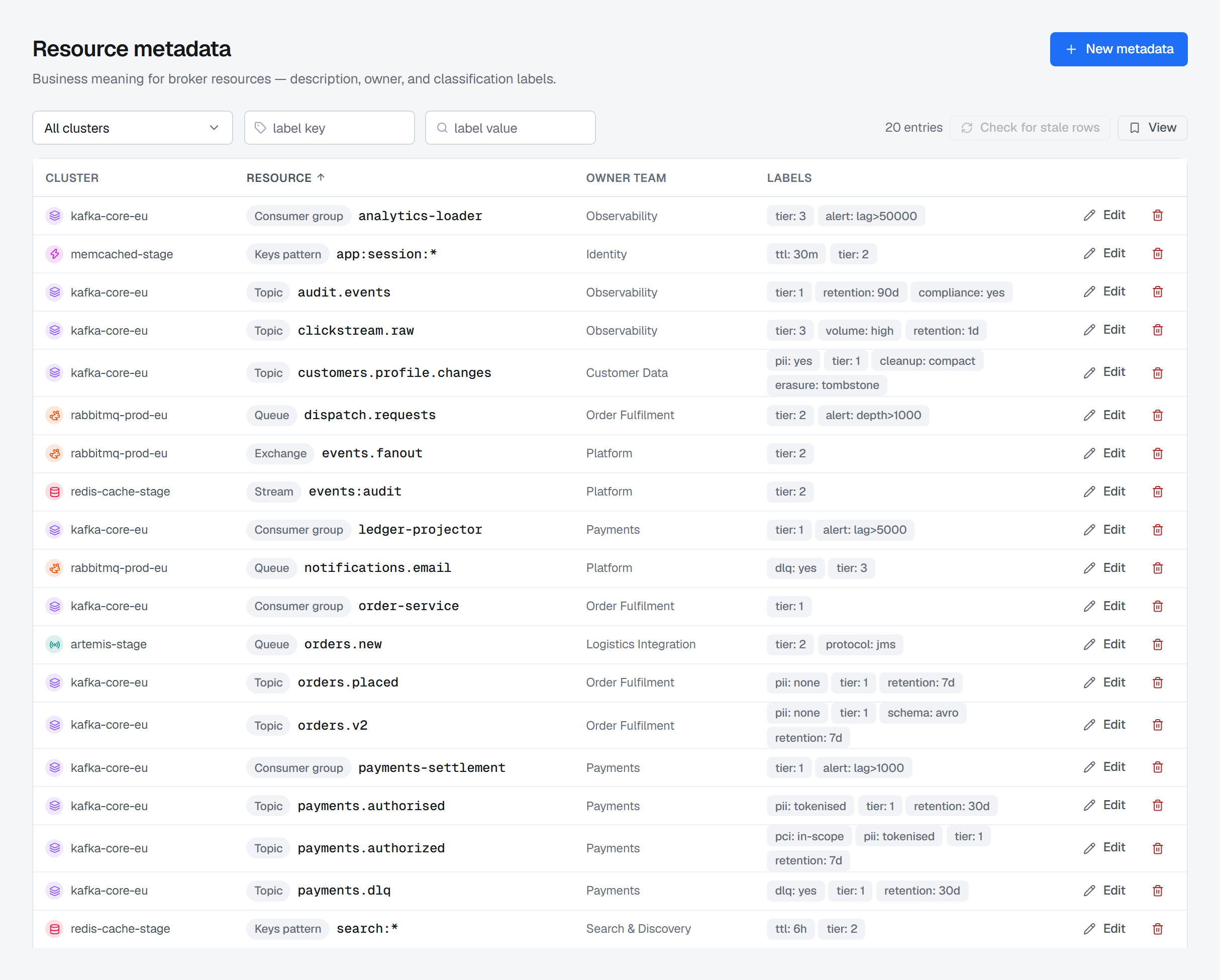
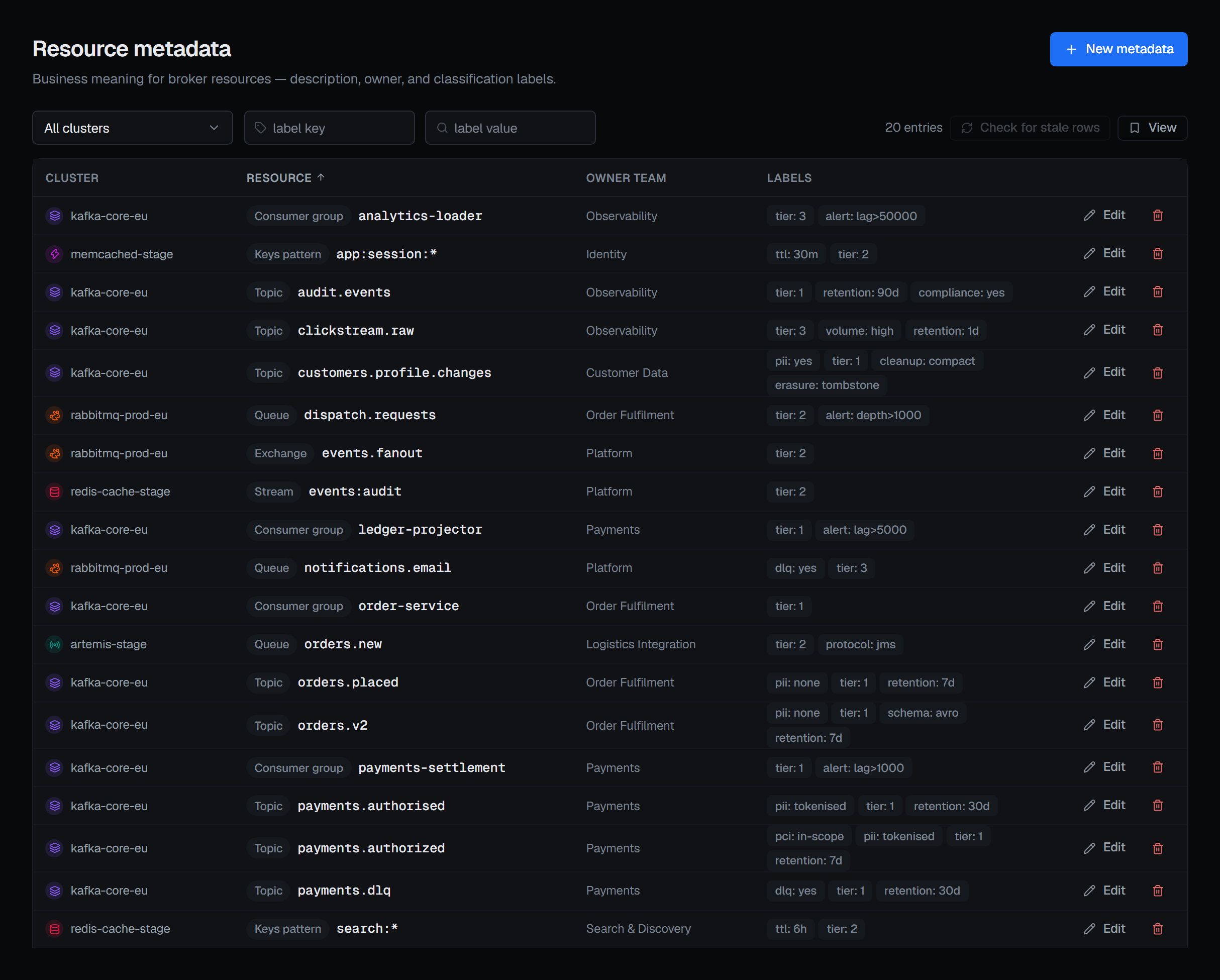
Attach to a Kafka topic or consumer group, a RabbitMQ queue or exchange, a Redis stream or key pattern, or an Apache Artemis queue:
- A description — what this resource is for, in words.
- An owning team — who to talk to before changing it.
- A classification — Public, Internal, Confidential, Restricted or Secret, or none. It is recorded on every audit entry about the resource from then on. A topic, queue, stream or exchange created from the console starts with its environment's default — unless it already holds one: declaring an existing RabbitMQ queue or exchange again keeps what it holds, and choosing another value there is recorded as a change of its classification, with both values.
- Labels — free-form key/value pairs,
pii → yes,tier → critical,retention-reviewed → 2026-Q2. They are yours to define; BROKA does not impose a taxonomy.
Metadata is attached to a resource on a specific connection, not to a name in the abstract — so
orders.equity.v2 in production and orders.equity.v2 in staging are two different things with two different
owners, which is usually the truth.
A RabbitMQ queue or exchange created from the console is also kept in its virtual host: orders
in one vhost and orders in another are two entries, and the list shows the vhost beneath the name.
An entry added here by hand names no vhost, and applies in every vhost that has no entry of its own.
Nothing here is pushed to the broker. Metadata lives in BROKA's own database, which is why it works
identically across the platforms, none of which have anywhere to put it. Anyone who can open the
screen reads it; adding, editing and deleting an entry need connections.manage on its connection.
Without it, New metadata is disabled and says why, and an entry opens to be read but not saved.
An entry also answers to its connection's environment, as any change on that cluster does. In a read-only environment it cannot be added, changed or deleted; in a guarded one the console asks for a reason before it saves, and the reason is recorded with the change. Moving an entry to a cluster in another environment answers to both.
Because the broker is never told, a resource can be deleted there and its entry left behind. Pick one cluster and Check for stale rows asks that broker which entries still name something that exists: it counts those still there, those gone from the broker and those it could not check, and names the missing ones. It deletes nothing — removing a stale entry is your own Delete. The check takes thirty seconds at most; an entry it has not answered by then is counted among those it could not check, and says so.
An entry whose connection was itself deleted reads Deleted connection in the Cluster column and is drawn faded. To someone who views every connection and may delete them, the list says how many there are and offers Remove stale rows, which deletes them together after a confirmation that asks for a reason — each one recorded in the audit trail as its own deletion.
Templates
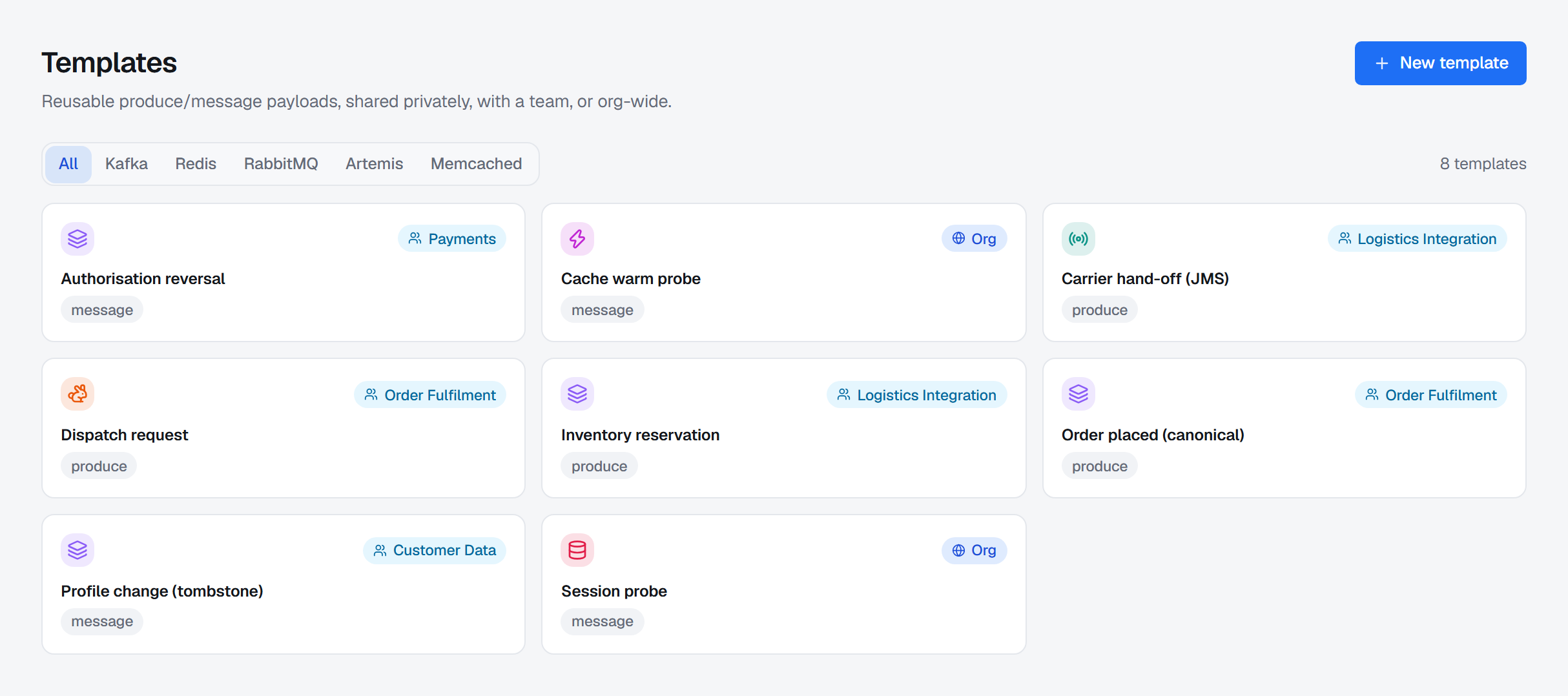
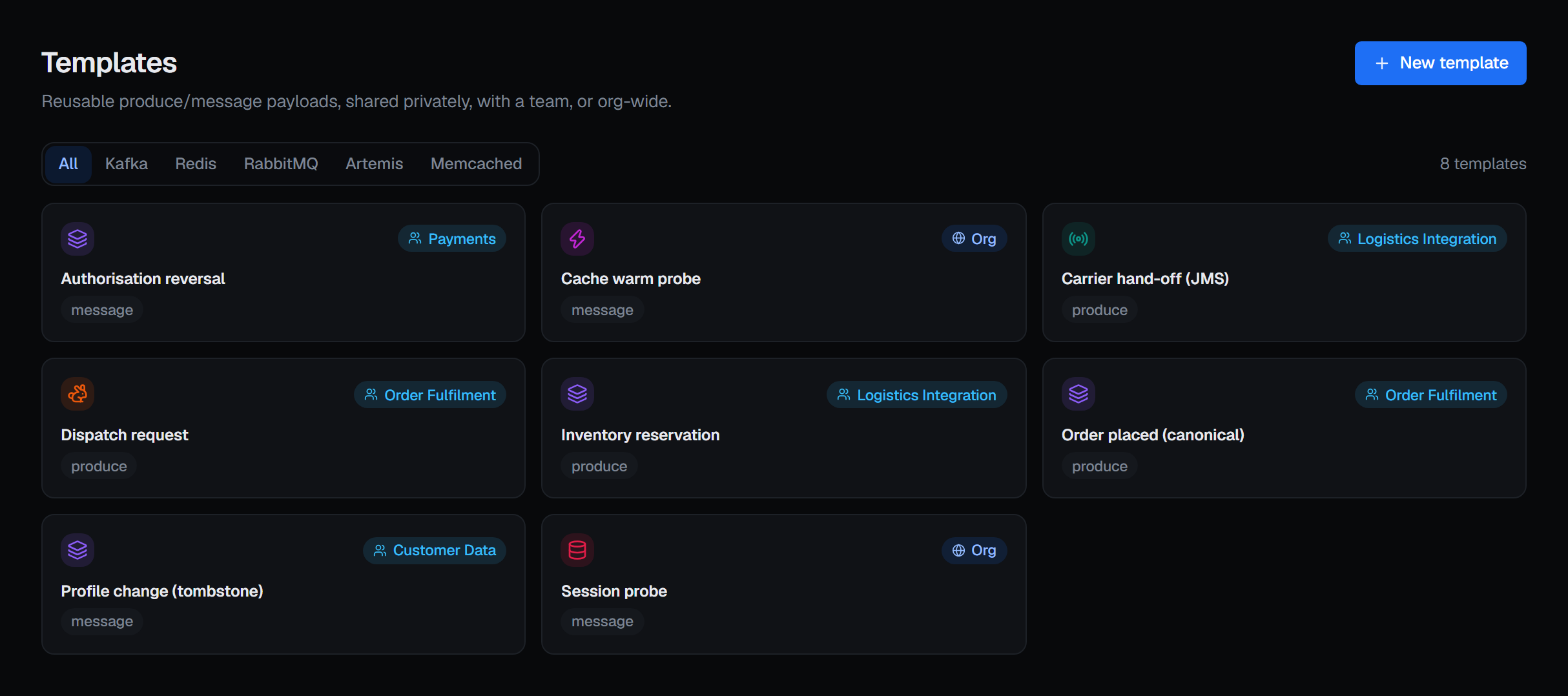
A template is a named, reusable example message for a platform: a key, a value and headers, kept as a document you can send again. They exist because the alternative — pasting a payload out of a chat message at 2am — is how the wrong thing gets published to production.
Templates carry no secrets; they are example content, and a template that needed a credential to be useful would be a template in the wrong place. A template holds up to 256 KB of content.
Saved views
A saved view is a list's layout kept under a name: which columns it shows and in what order, their widths, how it is sorted and how many rows a page holds — the topic list with the four columns you actually read, sorted by the one you care about. A view keeps the layout, not the list's filters.
Each view belongs to a list, so the console offers you the views that make sense where you are standing. The Saved views screen groups them the same way, under the screen's name — Kafka ▸ Topics — with who each is shared with.
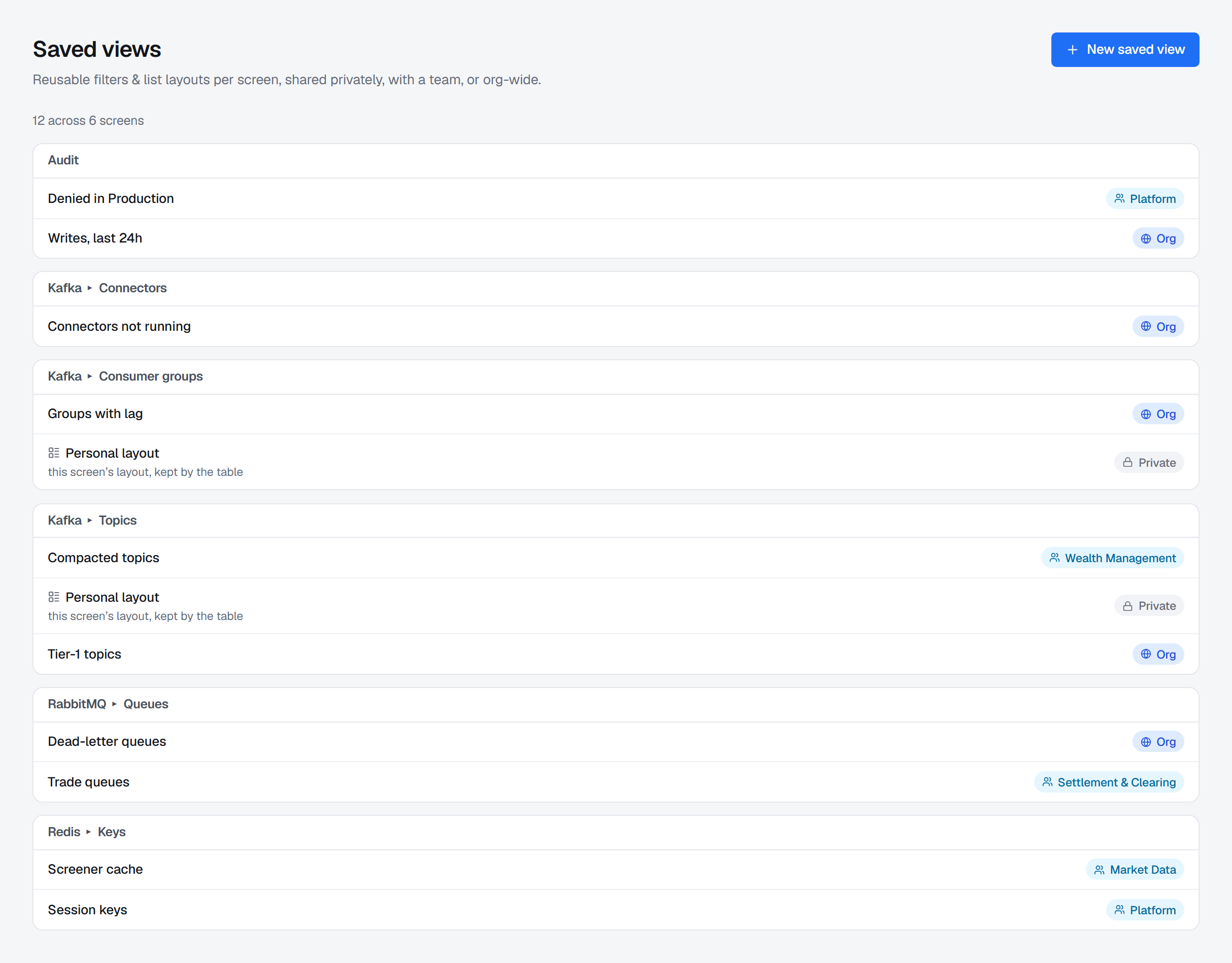
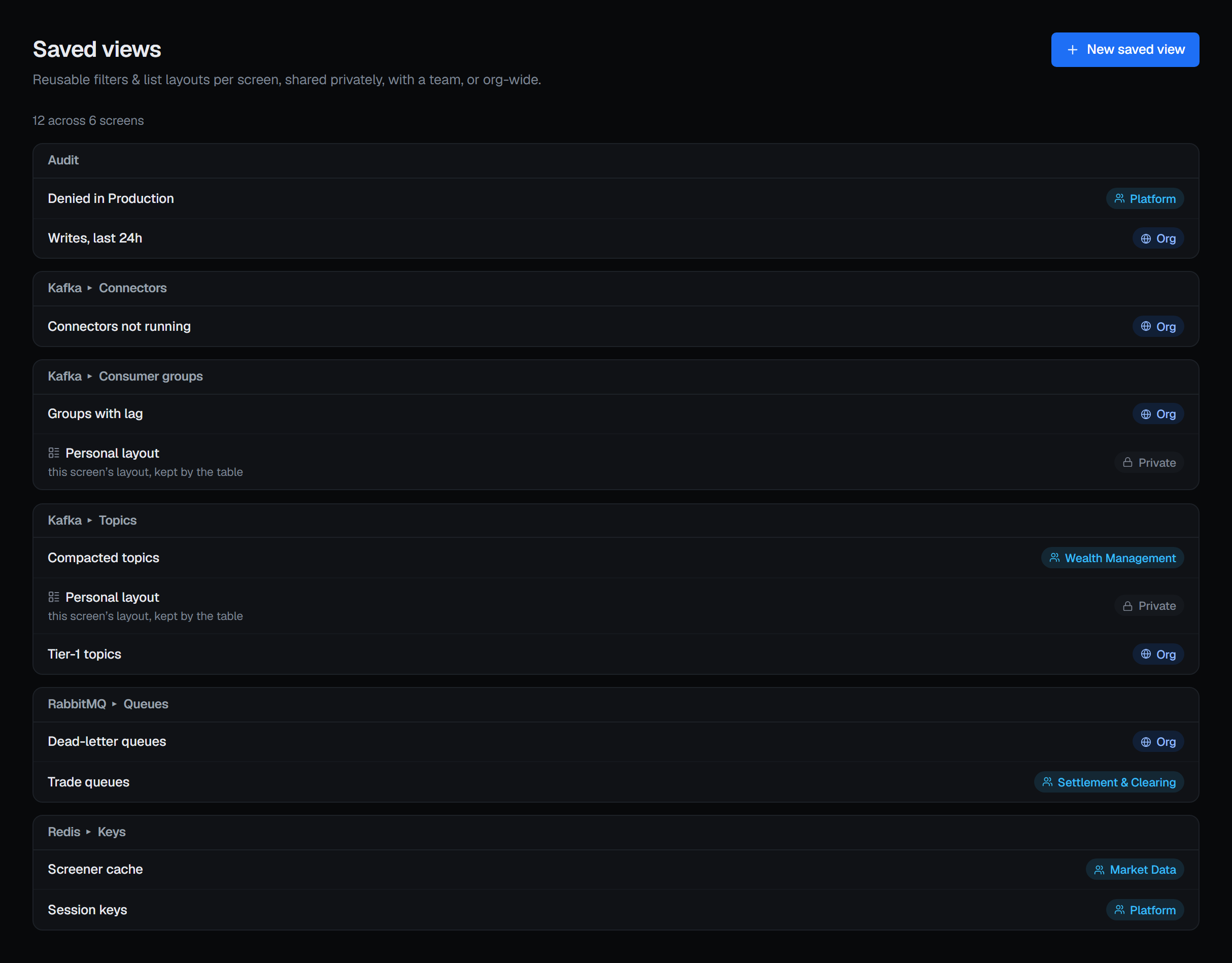
Who can see them
Templates and saved views carry the same sharing model, and it is deliberately small. Resource metadata has none: an entry describes the resource, not somebody's view of it, so there is one per resource and everyone reads the same one.
| Scope | Who sees it |
|---|---|
| Private | Only you |
| Team | Everyone in the owning team |
| Org | Everyone in this BROKA installation |
The point of team scope is that the person who takes the next on-call shift starts from the templates and the views you already worked out, rather than reinventing them.
Search keeps to the same rule: it finds a template or a saved view only where this table would show it to you, and never the table layout the console keeps for each person.
Table layouts
Every list in the console works the same way:
- Sorting a column sorts the whole list, not only the page you are looking at.
- Columns can be resized by dragging the edge of their header, and Columns chooses which optional columns are shown and in what order.
- View, beside them, lists the saved views for that list. Choosing one applies its layout; Default
goes back to the console's own. Save as view… keeps what you see under a name and a scope, and
Update "
" — offered on a view you may edit, once you have changed something — writes your changes into it.
A view applies; it does not follow you. Once you have chosen a team's view, dragging a column changes your own layout, and the team's view changes only when someone chooses Update.
Your own layout is kept for each list, privately, and follows you to any device you sign in from. It is saved once when you leave the list, not on every change. It appears on the Saved views screen as that list's layout, where you can delete it to go back to the default; it is not edited there by hand. A layout naming a column the list no longer has simply drops it, and a column the list gained since is added.