
Settings
Updated 17 October 2026 · applies to 1.3.1 · Community and Commercial
Eleven pages in the menu — twelve in Commercial, which adds Licence; Data masking and MCP are Commercial and shown disabled in Community — and they divide cleanly: three are about people — users, roles, teams — and the rest are about the installation. Each page is behind its own permission, and a page you may not open is not in your menu.
Every page saves the same way. Change a field and a bar appears at the foot of the page — Unsaved changes, with Save and Discard — and it goes once the change is saved or put back. Save writes everything changed on the page, each card that asks for a confirmation asking in turn. What runs at once rather than being saved — rotating the key-encryption key, stopping the audit forwarding, a Send test — keeps a button of its own, apart from the bar.
Environments
Where you declare development, staging and production, and give each its colour so the top bar tells you where you are without reading.
Two properties are set here and matter everywhere else:
The write policy. Marking an environment read-only refuses every write inside it, whatever the operator's permissions say. It is a guardrail rather than a role, and it is the control to reach for when the answer to "who should write to production from a web console?" is "nobody, ordinarily". The middle setting, Guarded — every write asks for a reason, lets writes through only with one; see Environments.
Whether insecure TLS is allowed. An environment that forbids it refuses to save a connection that skips certificate verification — Kafka, Redis or RabbitMQ — and the option is disabled in the connection form rather than accepted and rejected later.
A third, the default classification, is what topics, queues, streams and exchanges created there are classified as unless their creator chooses otherwise; see Environments.
An environment cannot be deleted while connections still belong to it, and the refusal names how many. That check runs on the server, so it holds however the request arrives.
Both properties are audited when they change, with the old value and the new one — because "when did production become writable again" is a question somebody eventually asks.
Security
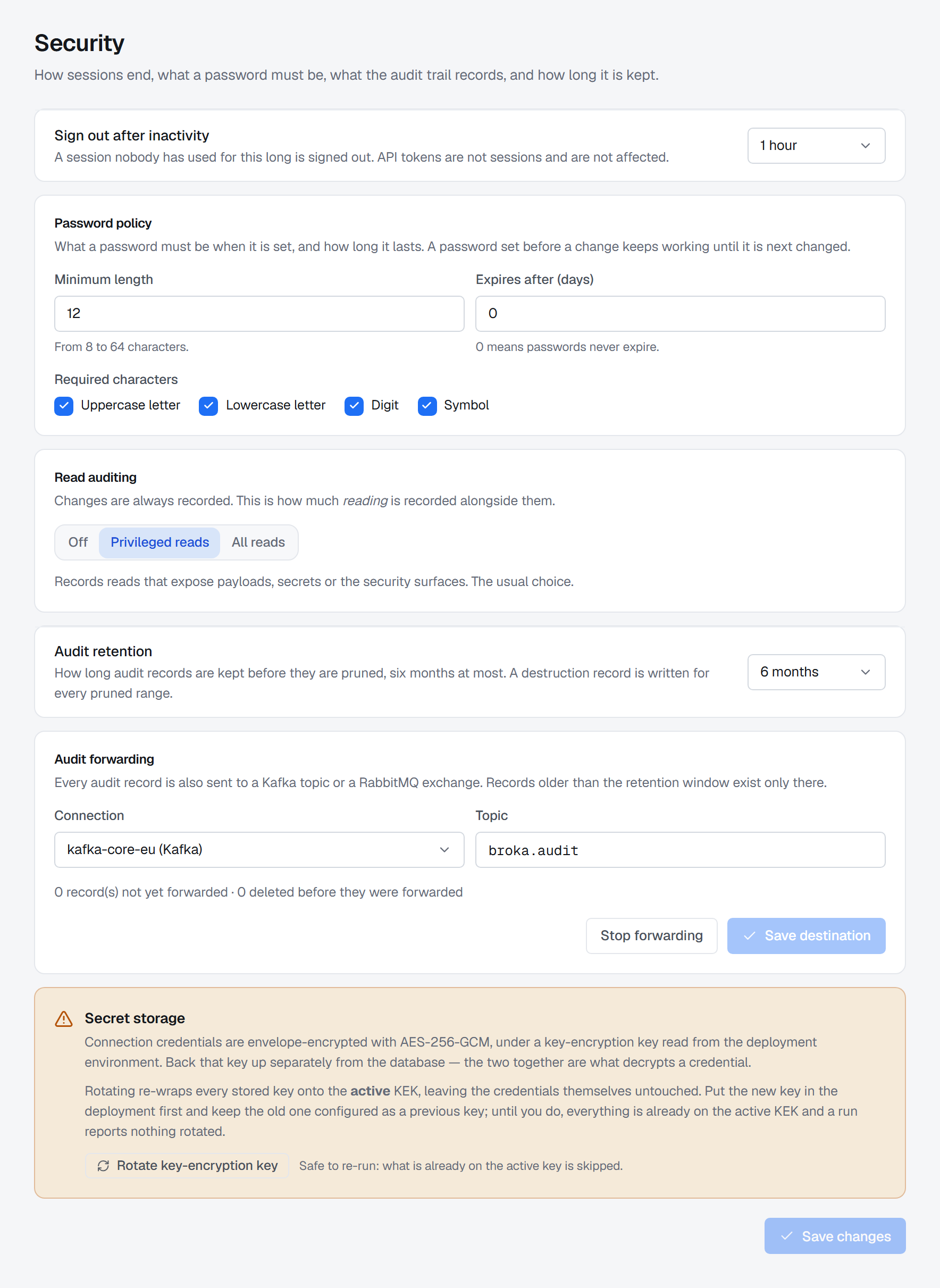
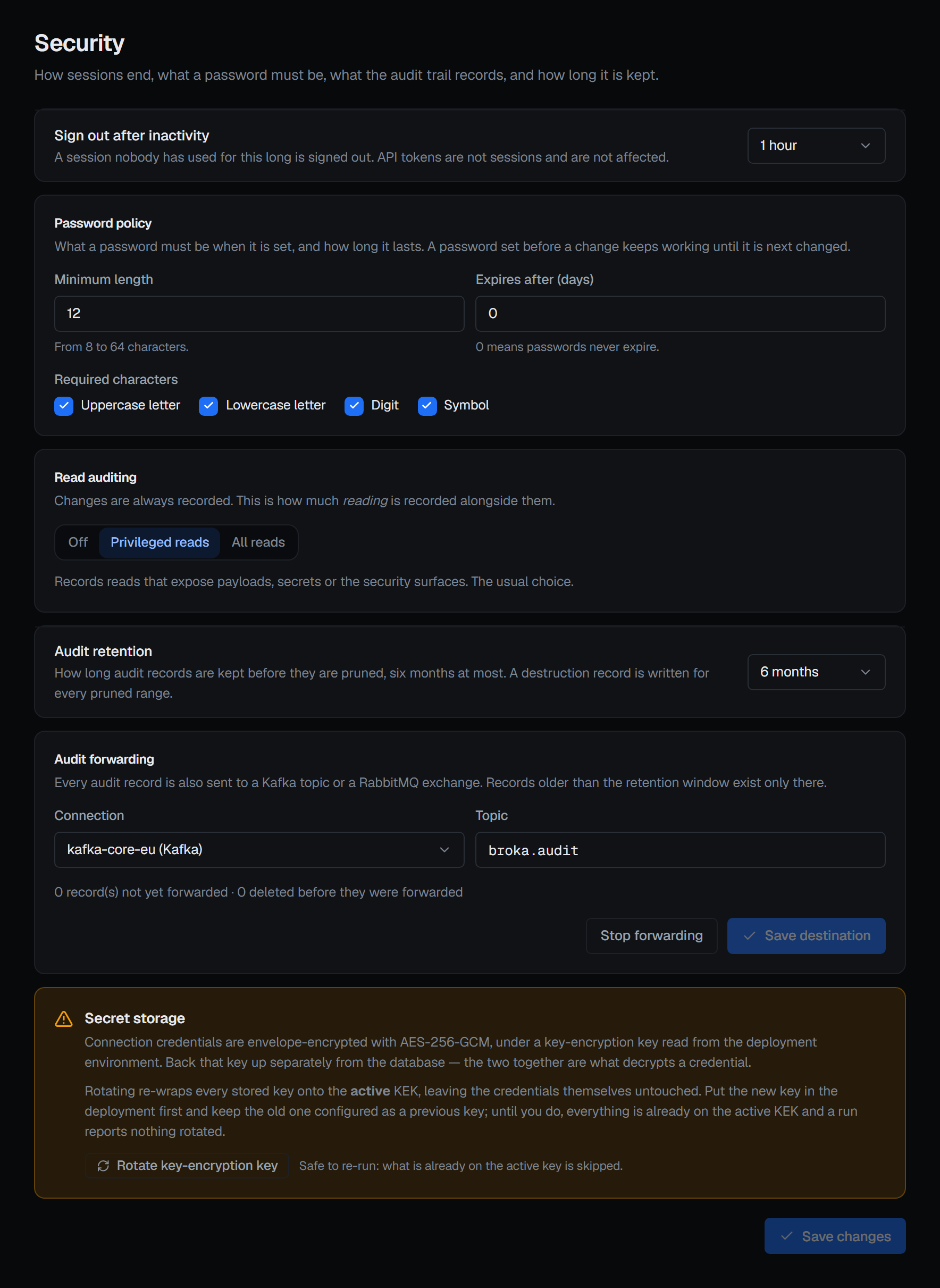
Six settings: how an unused session ends, what a password must be, when an account locks, when an account nobody uses is disabled, and two about the audit trail. A Commercial installation has a seventh, also about the trail.
When an unused session is signed out. Sign out after inactivity — Off, 15 minutes, 30 minutes, 1 hour, 4 hours or 8 hours; 1 hour by default. The server enforces it: once a session has gone that long without its person doing anything, the server refuses to renew it. Only real use counts — a screen left open that refreshes itself, or a live view that stays connected, does not keep a session alive. The console also signs itself out the moment the window passes, counting input in every tab of the browser, so a tab in the background cannot sign you out of the one you are using; the sign-in page then says why. API tokens are not sessions and are not affected.
What a password must be. The Password policy: a minimum length from 8 to 64 characters, 12 by default; which of an upper-case letter, a lower-case letter, a digit and a symbol are required, all four by default; and how many days a password lasts, from 0 — never expires, the default — to 365. It applies wherever a password is set: at first-run setup, when an administrator creates an account or resets a password, and when someone changes their own. Every field that sets a password states the policy in force. A stricter policy does not invalidate the passwords already in use; each keeps working until it is next changed. A password past its expiry still signs its holder in, but only to change it.
When an account locks. Account lockout: how many wrong passwords in a row lock an account, from 3 to 9 — 5 by default — and how long it stays locked, from 5 minutes to a day — 15 minutes by default. A change applies from the next sign-in. The lockout is recorded in the audit trail as its own event.
When an account nobody uses is disabled. Unused accounts: an account that has not signed in, used a session or used an API token for this many days is disabled — 90 by default, from 30 to 365, or 0 to switch it off. Administrators are not exempt, but the last account that can manage users is never disabled this way. The rule runs every hour and again when someone signs in, so an account past its window cannot sign in while it waits for the next run. Each disable is recorded in the audit trail with the rule as the actor and the day the account was last used. An administrator can enable the account again from Users, and that restarts its count.
Single sign-on — Commercial only. After those four, a card of its own, saying how many identity providers are enabled, with Manage providers: the providers people can sign in through, over OpenID Connect or LDAP, and their group mappings. It is not one of the page's settings and is not saved with them. See Single sign-on. In Community the card is shown locked, naming the edition.
Which reads are recorded — Commercial only. Most reads are not — recording them all produces a trail nobody reads — but privileged ones are, and this is where that tier is set. In Community the setting is shown disabled: that edition records every write and every refusal, and no reads.
How long the trail is kept. At most six months — 180 days, which is also the default; the choices are 30 days, 90 days and six months. You can shorten it but not switch it off, and shortening it is confirmed and needs a reason, because it deletes records sooner. Set it against your review cycle rather than your disk: a trail that expires between reviews cannot answer the question a review exists to ask, so if a review looks further back than six months, forward the trail — anything older exists only in a forwarded copy (see Audit logs). Every pruned range writes a destruction record of its own, so shortening retention leaves evidence that it happened.
Where the trail is forwarded — Commercial only. A Kafka or RabbitMQ connection already registered in BROKA, plus a topic on Kafka, or an exchange (empty for the default exchange) and a routing key on RabbitMQ. Saving a destination — with the page's Save — and Stop forwarding both need a reason and are recorded. Once it runs, the card counts the records not yet forwarded and any deleted before they were, and says so, with the destination's own words, when the destination starts refusing what is sent. Forwarding to a file or an HTTP endpoint, in either edition, is set in the deployment environment rather than here — and while it is set, the card says so and offers no Kafka or RabbitMQ destination.
Changing any of them needs the security permission, and only that one. The audit settings need it to be read as well: they are not part of general settings and are not visible to someone who merely has an account, because how long the trail is kept, and which reads are recorded, are exactly the two facts most useful to somebody trying to stay out of it. The four sign-in settings — the inactivity window, the password policy, the lockout and the unused-account window — can be read by anyone signed in, because the console needs the first two to sign itself out and to state the policy beside every password field.
Beside them, how connection secrets are stored: encrypted with a key of their own, wrapped by the installation's key-encrypting key, which comes from the deployment environment and never reaches the database. The console refuses to start without it. Rotate key-encryption key re-wraps every stored key — connection secrets, in Commercial single sign-on's client secrets and bind passwords, the installation's private key and its data-protection key ring — onto the active key, in one transaction, and reports per store what it re-wrapped and skipped. Put the new key in the deployment first and keep the old one as a previous key; until then a run reports nothing rotated, and it is safe to run again. It asks for a reason.
Connections
The estate's connection registry — every connection on every platform, in one list searched by name or tag and filtered by platform, environment and status. Opening one, or choosing a platform from New connection, takes you to that platform's own form. See Connections.
Users, roles and teams
Three pages, described under Users, Roles and permissions and Teams. Each is gated on its own permission — managing roles and managing users are separate rights, and separating them is what lets a reviewer hold one without the other.
System
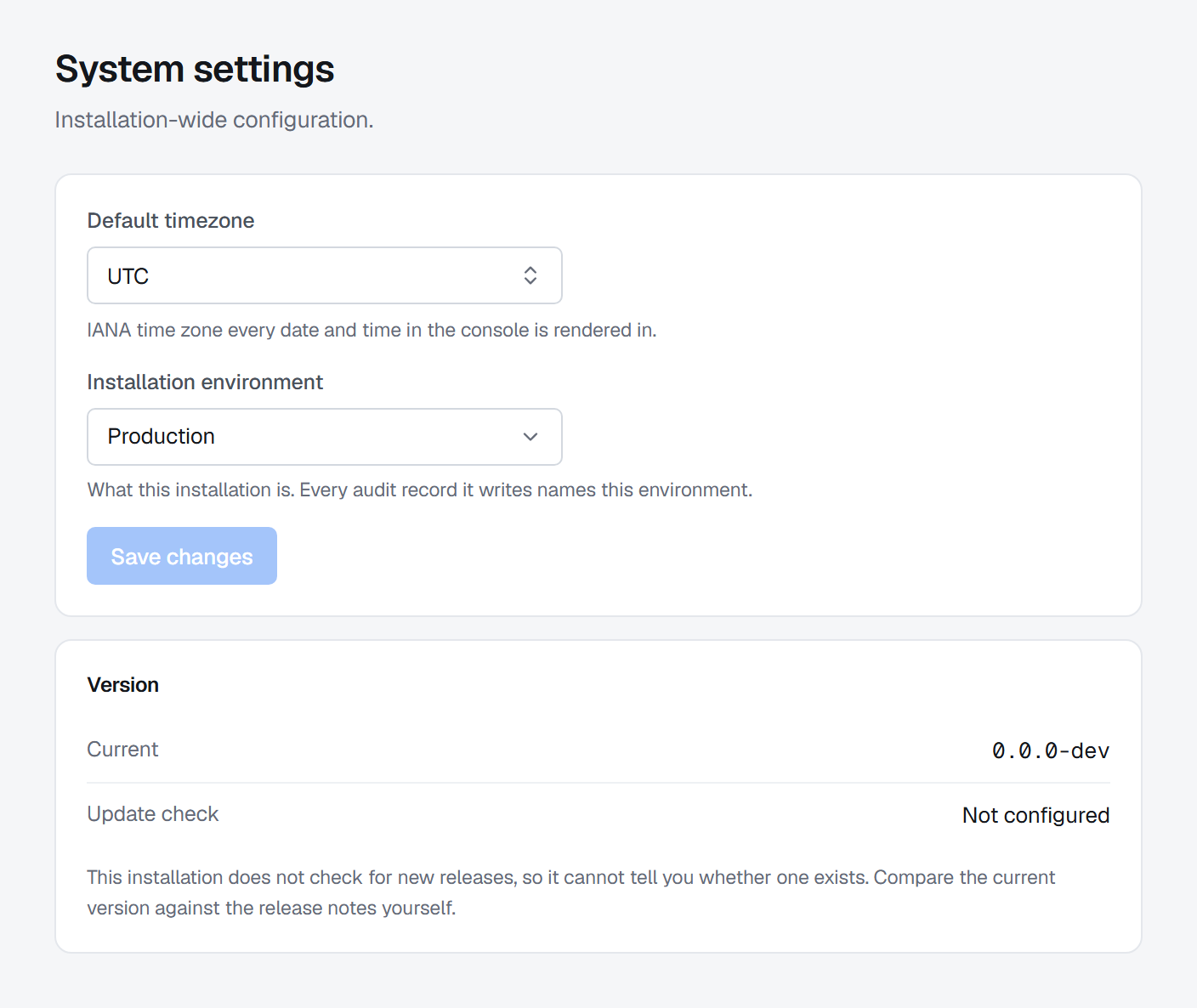
The installation's default time zone and its installation environment — what this installation of BROKA is, from Production to Disaster recovery. That is not one of the environments your brokers are grouped into: it describes the console itself, and every audit record the installation writes names it. First-run setup asks for it, and this is where it is changed.
Metric history retention, beside them, is how long the metric history keeps each hour's figures: 7, 30, 45 or 90 days, 7 unless you change it. The minute readings are kept for 48 hours whatever it says. Choosing a shorter window asks first — Shorten metric history — and the history older than the new window is deleted as soon as you confirm. It is saved with the page's other settings and recorded in the audit trail with both values.
Registration, below them, takes an e-mail address and a company name, both optional. They are sent with the release check-in (see About) so that we can write to whoever runs the installation about a security issue; leave both empty to send none. Saving it needs the settings permission, and the change is recorded in the audit trail.
Feature flags
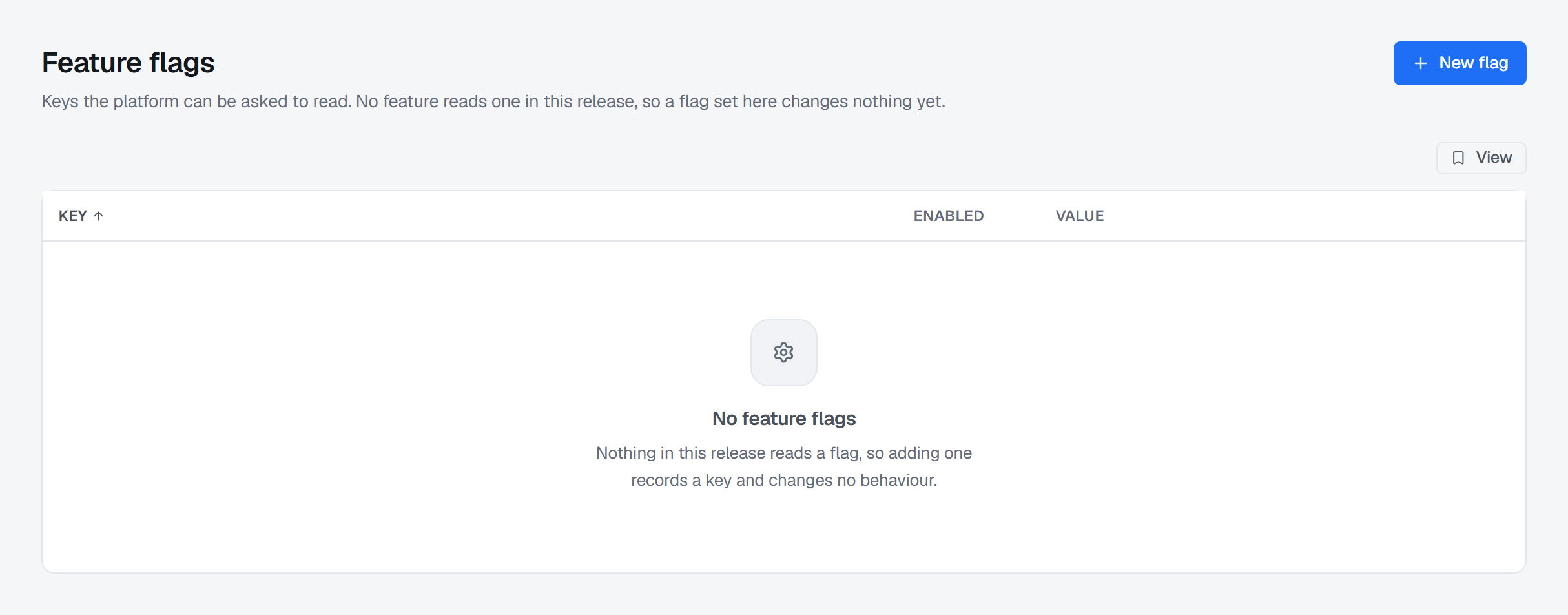
Keys the platform can be asked to read, stored per installation and changed without a restart. Each
change is audited. No feature reads one in this release, so a flag set here changes nothing yet — and the page
is therefore not in the Settings menu. It still answers at /settings/feature-flags for someone with the
feature-flag permission, and says the same thing behind the ? beside its title.
Integrations
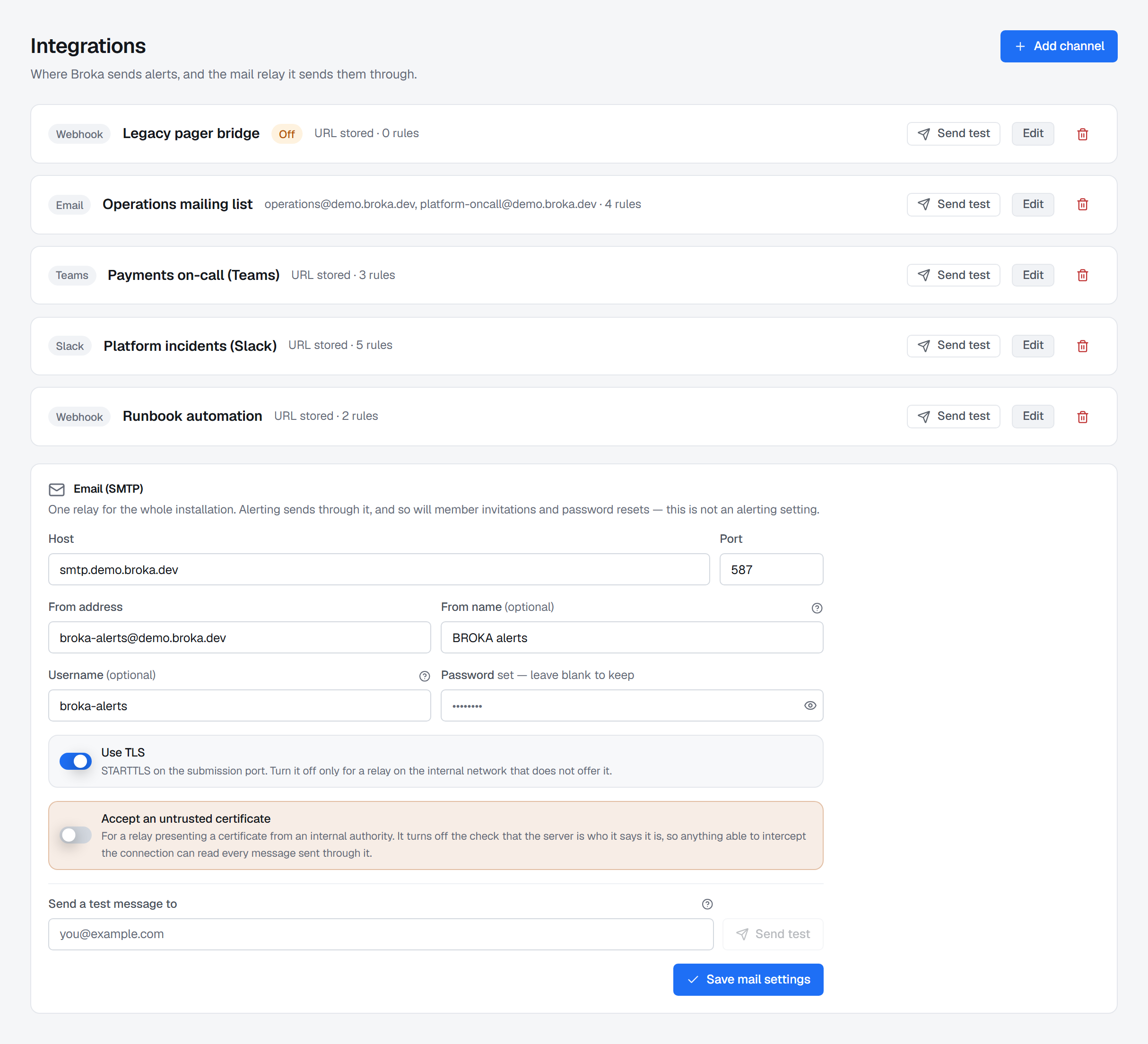
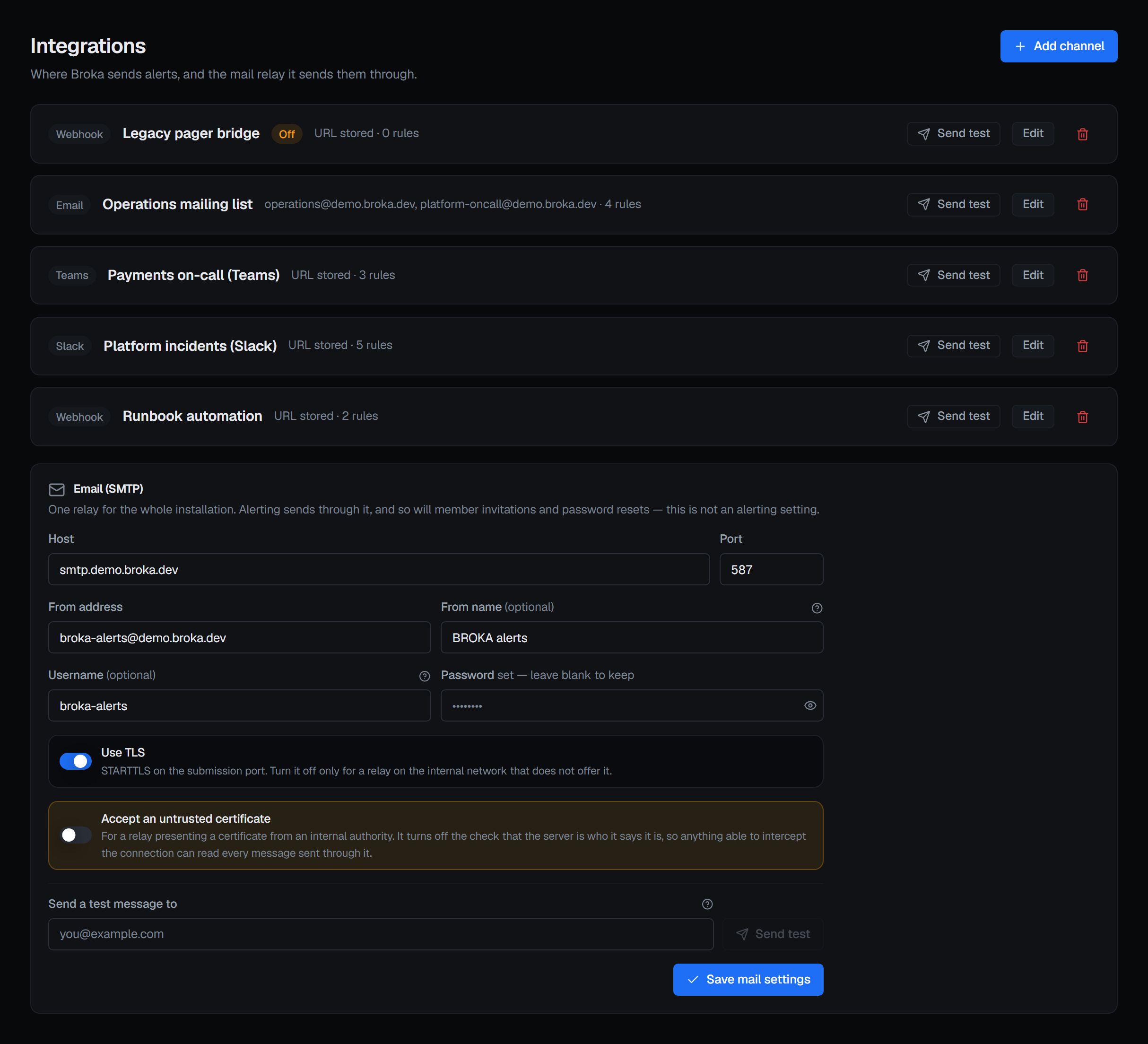
Slack, Microsoft Teams and webhook channels — Commercial only. In Community they are shown disabled; e-mail works in both editions. A channel of one of them kept from a Commercial installation that was moved back is listed and can be deleted, and nothing is delivered to it: its notifications say the edition that delivers it.
Where an alert goes when it fires. Four kinds of channel: Slack, Microsoft Teams, e-mail and a generic webhook, which posts BROKA's own document to any endpoint you name. The console is always a destination and needs no channel at all.
Beside them, the installation's own SMTP relay, which is what the e-mail channel sends through.
Each channel's credential is write-only: you set it, and the screen never shows it again. Each has a Send test that reports what the far end actually said rather than whether the request was accepted — a webhook that answers 200 and drops the message is the failure worth catching, and the test is proxied to the broker service, which is the side that will be doing the dispatching. That service is the only place a channel's credential or the relay's password becomes plaintext, and a decryption made for a Send test is recorded on the test's audit entry, naming whose credential and of which kind, never the value. One made to send an alert, which no request asked for, is recorded by the service as an entry of its own, once an hour per credential.
Data masking
Commercial only. The one place masking rules are defined: which fields of which messages and values are hidden
from people who may read the contents but not those fields. Behind its own permission, masking.manage. In
Community the page is shown disabled with the edition named. What a rule is, how it applies and who may still see a
field unmasked is in Data masking.
MCP
Commercial only. Whether the installation serves the MCP server, through which an AI assistant reaches BROKA with
an API token: Off (the default, and the endpoint answers as if it did not exist), Read only, or Read and
write. The page shows the endpoint's address and the settings to paste into Claude Code, Claude Desktop or Cursor,
one tab each.
Changing the mode takes settings.manage and is recorded. Everything else about it is in MCP server.
About
One card about this installation: the version you are running, whether a newer one exists, the edition and the licence — in Community, free to run with no metering and no licence key; in Commercial, a link to the Licence page.
Whether a newer release exists. The card says Update available with the release's number — prominently, with
What's new beside it, which opens the release notes on broka.dev — or Up to date, or Not checked yet, the last
until the installation's first check-in has been answered; and when it last checked. Every installation checks
license.broka.dev once at start and once a day, sending its installation id, its version and its edition, and the
registration shown in System; nothing about your brokers, their data or how BROKA is used. No
setting turns it off; an installation with no route out simply never hears back.
Security advisories. When we have published a security advisory that affects the version an installation runs, the check-in's answer names it and the card lists it under Security advisory: its title, which opens the advisory on broka.dev, then its identifier, its severity and the version that fixes it — no fix yet until one exists. There is no such row when none applies, and upgrading past the fix clears it at the next check-in.