
Your account
Updated 14 October 2026 · applies to 1.3.0 · Community and Commercial
Everything about your own account is in one place, reached from your name at the bottom of the sidebar. It has four tabs: your profile, your password, the sessions you have open, and the API tokens you have issued.
Managing other people is a different screen with a different permission — see Users.
Profile
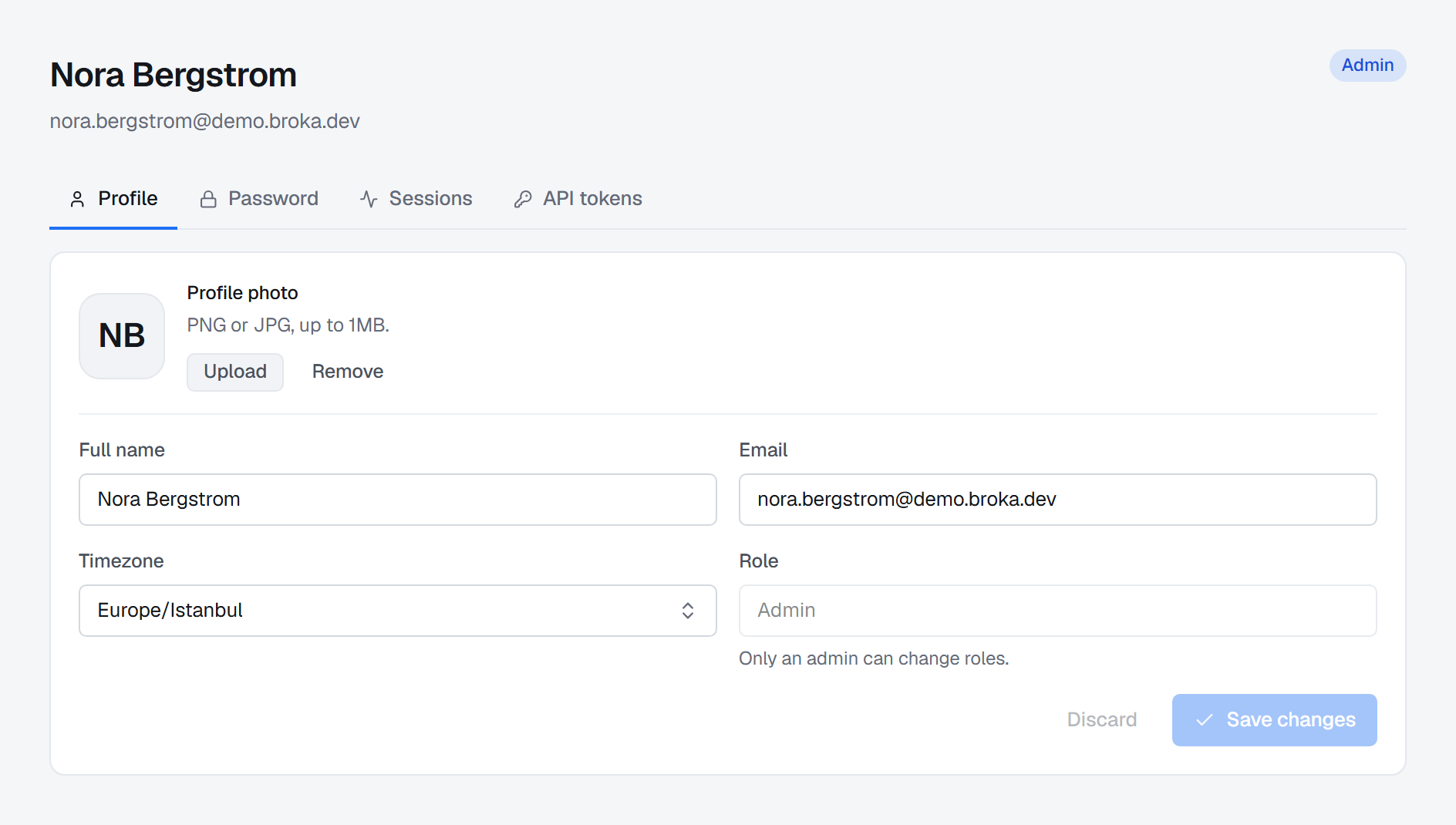
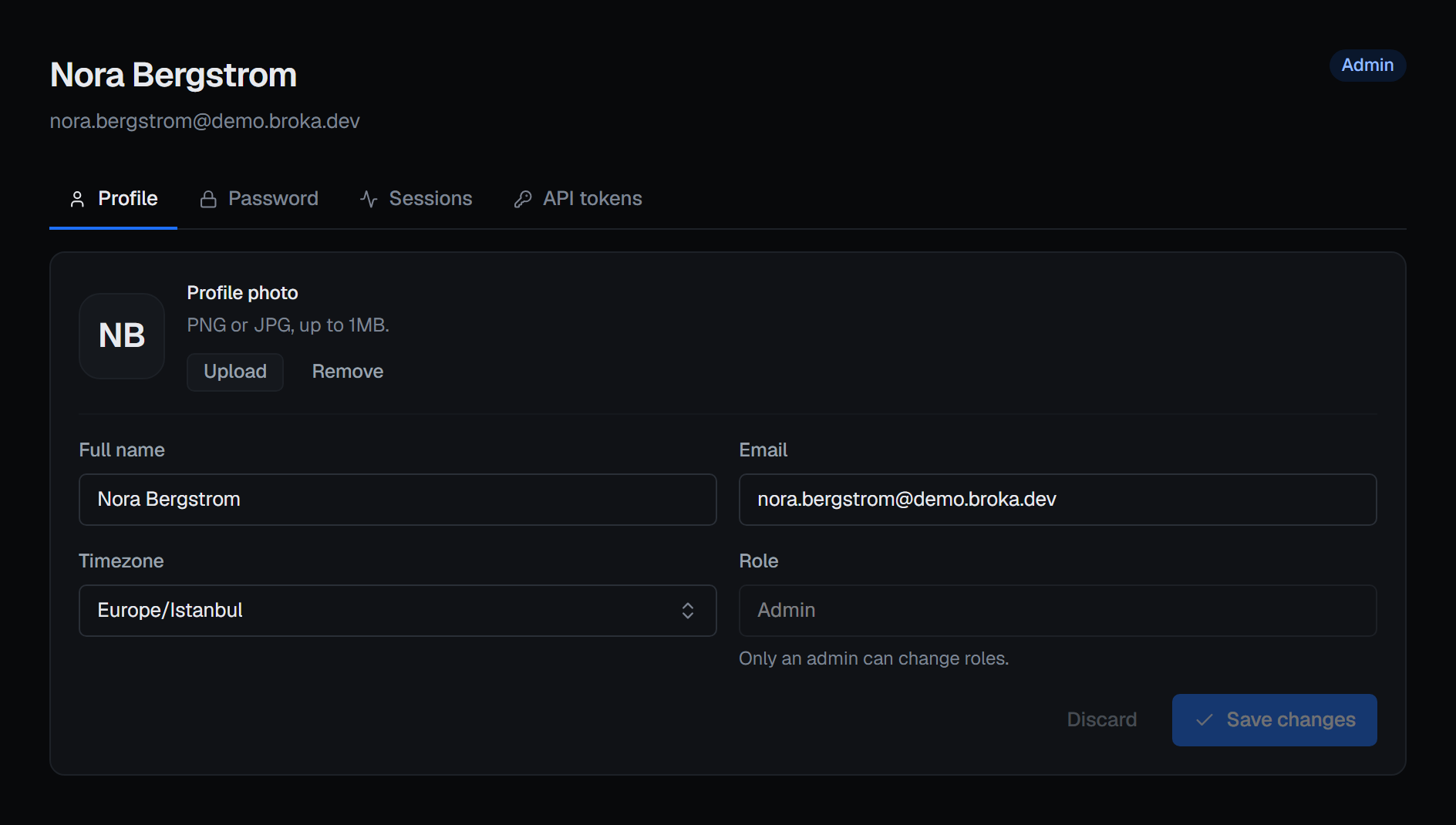
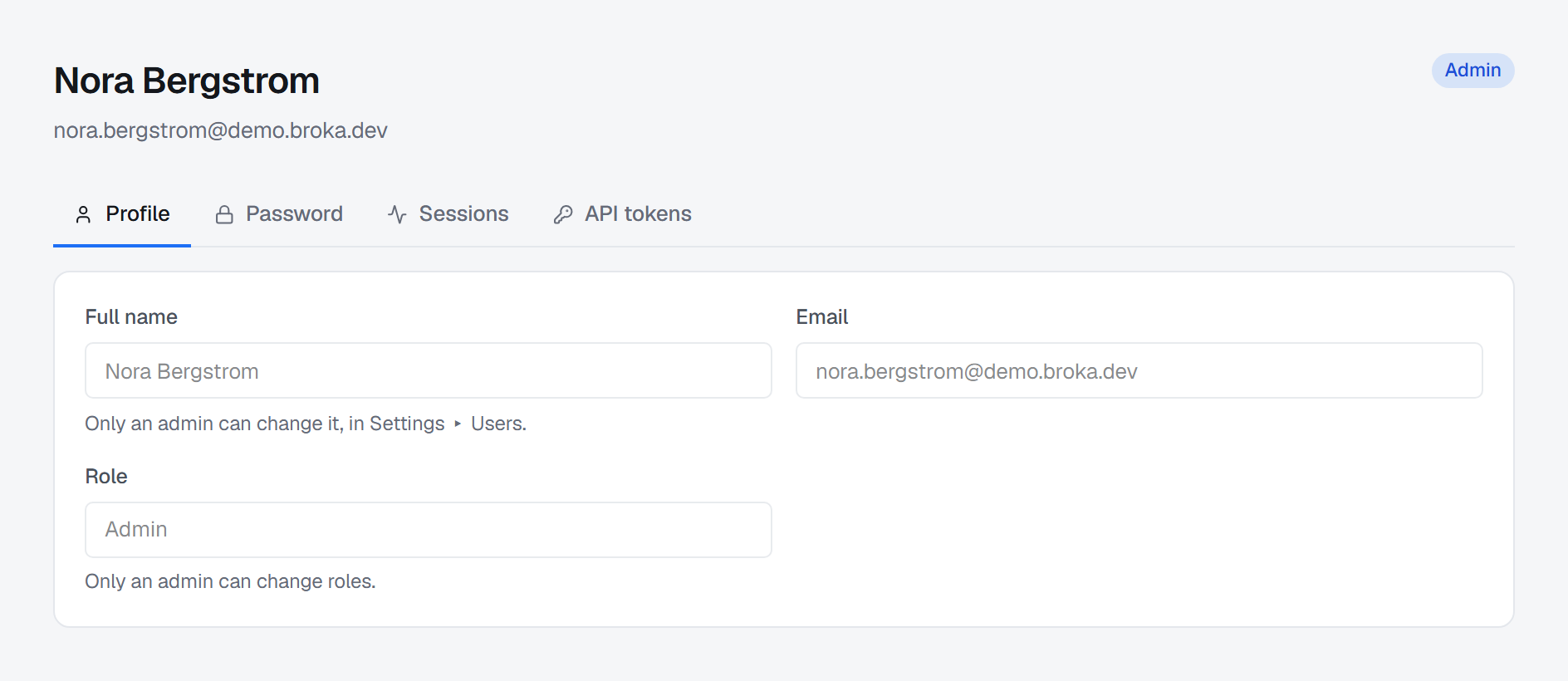
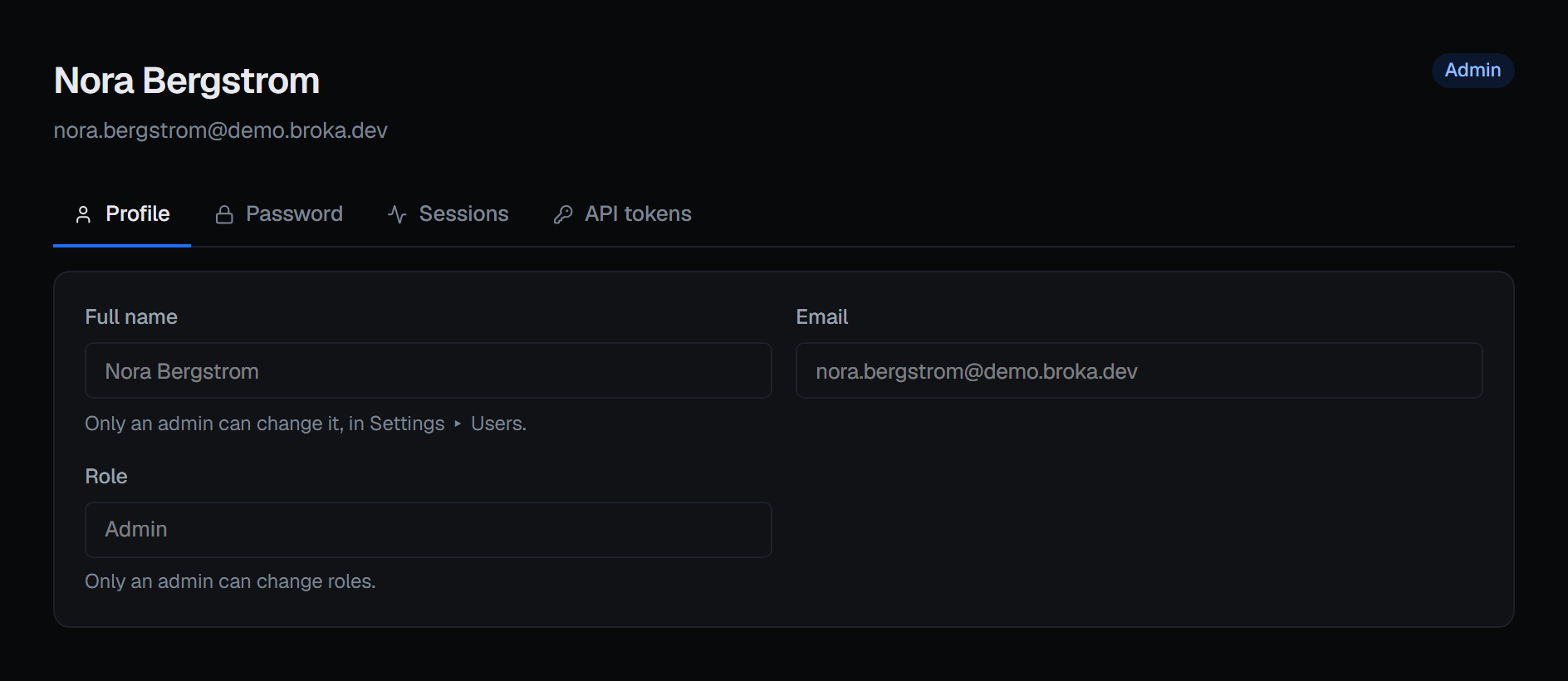
Your name, your e-mail address and your roles, read-only, with one note saying who changes them. None of them can be changed from here. Only an administrator renames an account, from Settings ▸ Users (Rename member), and only an administrator changes roles. There is no profile photo, and no time zone of your own: the time zone every timestamp is rendered in belongs to the installation — it is set in Settings ▸ System.
Password
Changing your password asks for the current one, which is what stops a session left open on an unlocked machine from becoming a permanent one. The new one has to meet the installation's password policy, which is stated beneath the field — by default at least twelve characters, with an upper-case letter, a lower-case letter, a digit and a symbol — and saving it signs out every other session, which is the point of changing it.
If the policy gives passwords an expiry, a password past it still signs you in, but to one screen only — Your password has expired — with this same form on it, and the rest of the console stays closed until the password is changed. Changing it there ends every session, that one included, and you sign in again with the new password.
If you cannot sign in at all, an administrator can reset your password from the Users screen — BROKA sends no email, so the new password is handed over out of band and changed here at your next sign-in.
Signing in through an identity provider (Commercial). An account without a BROKA password sees a line instead of the form. One that signs in through an OpenID Connect provider reads that it has no password, and that an administrator can give it one with Reset password; one linked to a directory reads that it signs in with its directory password, which is changed where your organisation manages it. See Single sign-on.
Sessions
One row per sign-in, read from the refresh-token families the installation actually holds — not a guess from a log. Refreshing rotates the token underneath a session, so a browser you keep using stays a single row rather than accumulating one per hour.
Ending a session revokes that family immediately: the browser holding it is signed out the next time it asks for anything. Sign out here, in the menu of the row marked This device, signs you out of this tab at once. Use this rather than "change the password" as the first move when a device is lost — it is the narrower action, and it takes effect without disturbing your other sign-ins.
API tokens
A token is a machine credential: a long-lived secret a script or pipeline sends instead of signing in. It carries your permissions, so a token cannot do anything you could not do yourself, and every action it takes is recorded against you. New token opens the form beside the list. A token created here can do everything you can; leaving its expiry empty makes one that works until you revoke it. No token can create or revoke tokens or end sessions — those need you, signed in.
A token for an AI assistant (Commercial). Ticking For an AI assistant (MCP) makes a token whose permissions are
the ones you tick, with Use the MCP server (mcp.use) always among them — what lets it reach the
MCP server. The permissions are grouped by area and named as the roles editor names them — hover one for its
key — and View everything and Manage everything tick or untick every view or every manage permission you hold
at once. The assistant sends
it as Authorization: Bearer. Whether the server answers, and whether it lets assistants write, is set in Settings ▸
MCP.
Two properties are worth reading before you mint one.
The secret is shown once, at the moment it is created, and cannot be retrieved afterwards — not by you, not by an administrator, not from the database. Copy it then or mint a new one.
A revoked token stays in the list. It is marked revoked rather than deleted, because the audit trail refers to it by name and a row that vanished would leave entries pointing at nothing.
The list shows when each token was last used and when it expires as the day and how long ago, or how long until; hover either for the exact time.