

Access review
Updated 6 October 2026 · applies to 1.0.1 · Commercial
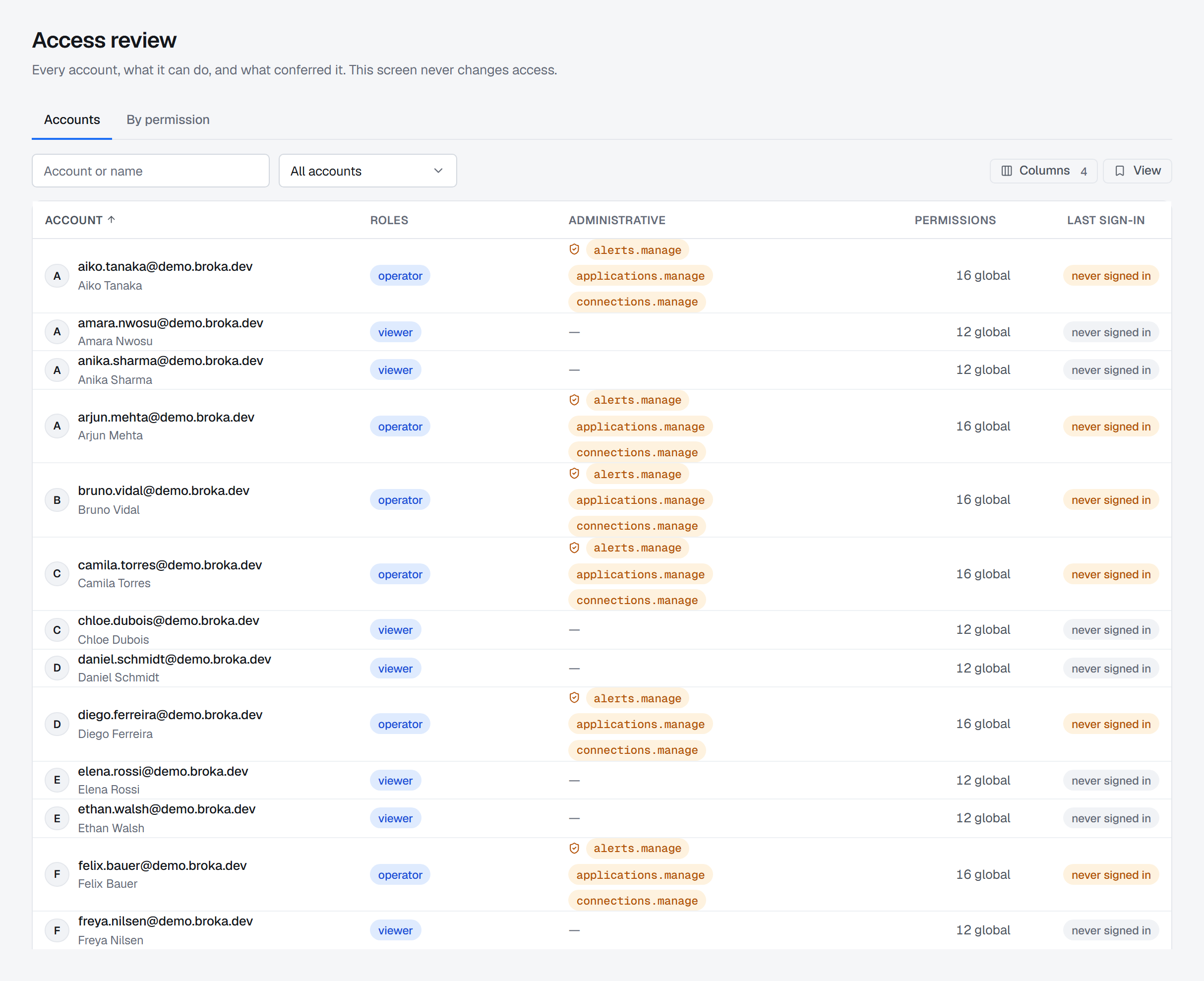
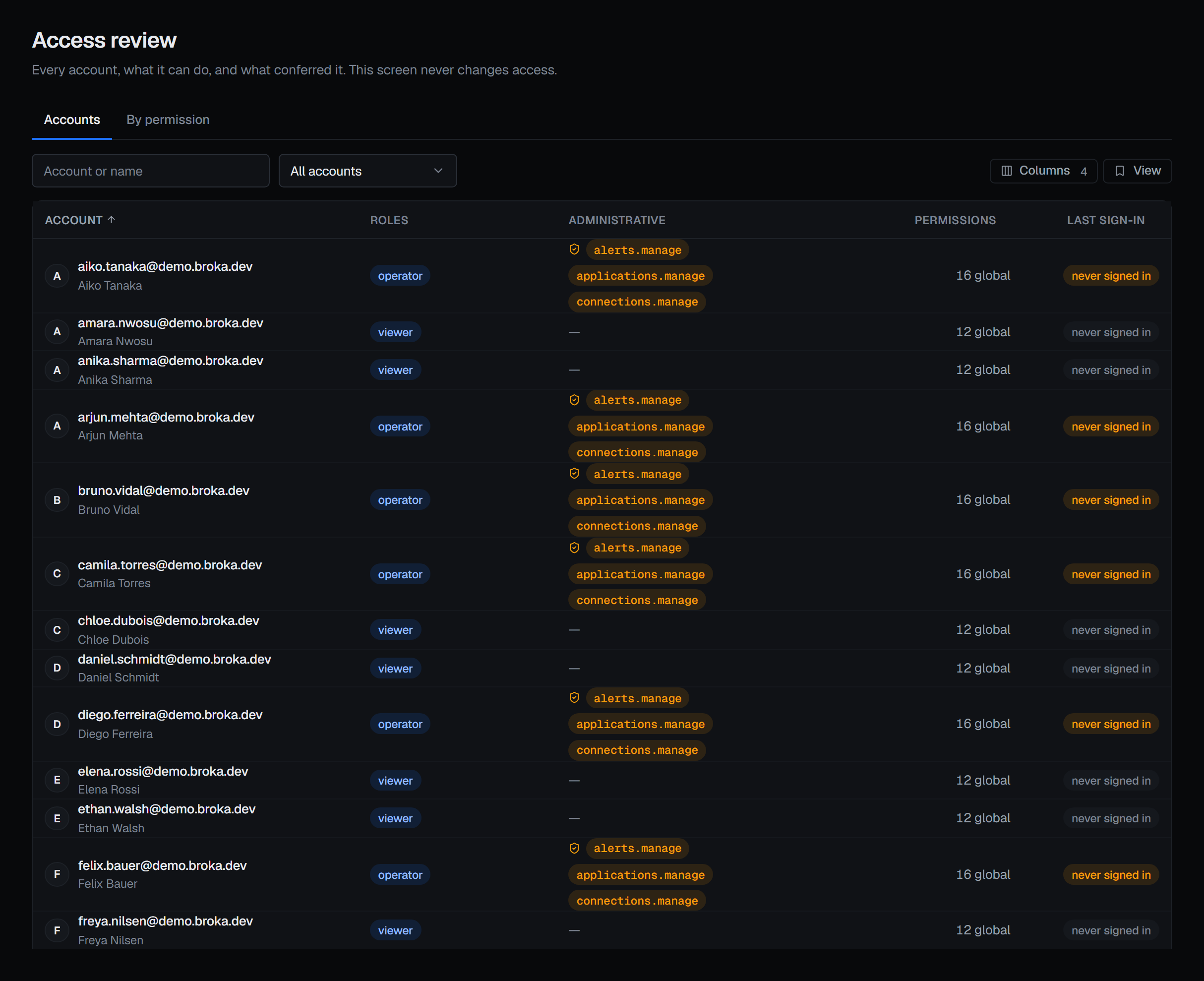
Access review shows every account in BROKA, what each one can do at each scope, and what conferred each permission — a role, a team or a grant. It is Operations ▸ Access Review, and its header says what it is for: Every account, what it can do, and what conferred it. This screen never changes access.
Access review is BROKA Commercial. In Community, Access Review keeps its place under Operations, tagged Commercial, and opens a page saying it is Available in Broka Commercial.
Opening it takes Access the audit log (audit.view), the permission that opens the audit trail.
Three questions
A review asks three things, and the screen has a place for each:
- Who are all these accounts? The Accounts tab lists every one, with the signals that mark one worth a second look.
- What can this account do, and why? A row on either tab opens the account's report: its access at each scope, and what conferred or took away each permission.
- Who holds this permission? The By permission tab lists everyone who holds one, and where.
All three are worked out from the same per-account report, so they share one definition of who holds what.
The report covers roles and Service access — what is assigned or granted to an account and to its teams. Grants on resource patterns, set under Resource access, are not part of it; they are on the account's and the team's own access panels, described under Users and Teams.
Accounts
Every account is listed, disabled ones included: a disabled account keeps every role and grant it had and gets them back when it is re-enabled, so it is part of what a review looks at. A deleted account is not listed.
Above the table are an Account or name box, which matches the address or the display name, and a filter by signal:
- All accounts
- Administrators — every account that holds a
.managepermission at any scope. That includes the built-in Operator role, not only Admin. - Never signed in
- Disabled
There is no filter for shared or automation accounts, because nothing in an account says it is one, and none for dormant accounts, because that needs a threshold. The last sign-in is shown, and the reader judges it.
| Column | What it shows |
|---|---|
| Account | The address, the display name beneath it, and disabled or locked out where either applies |
| Roles | The roles assigned to the account itself across the whole installation. A role held on one environment or connection, or through a team, is on the account's report |
| Teams | The teams the account is in |
| Administrative | The .manage permissions it holds across the installation. An account that holds one only on an environment or a connection reads at a narrower scope |
| Permissions | How many permissions it holds across the installation, as 16 global, and beside it how many environments and connections it holds anything at, as + 2 scopes. The second number counts scopes, not permissions |
| API tokens | How many of its API tokens still work: not revoked and not expired |
| Last sign-in | How long ago, with the exact time on hover; or never signed in |
Teams and API tokens are off by default and can be added from the columns menu; the layout can be kept as a view, as on the other lists. A column header sorts the whole roster, not only the page shown.
Never signed in is a finding of its own. On an account that holds administrative access it is marked as a warning, and its hover says why: This account holds administrative access and has never been signed into. No permission table can raise that question — only this one.
API tokens answer what a sign-in date cannot. A token acts as its owner — with their whole access, unless it was limited to named permissions — and outlives their sessions, so an account that never signs in can still be in use. Each account's report gives the count whether the column is shown or not.
A filter that matches nothing says so: No accounts match this filter — Every account was read; none of them carries this signal.
One account's report
A row on either tab opens the account's report beside the list. Its header gives the address, the display name,
Member since and whether the account is disabled. Beneath it are the badges that apply — Administrator, when
it holds a .manage permission anywhere, disabled, locked out, never signed in — and the account's
Roles, Teams, Created, Last sign-in and API tokens.
Then comes one card per scope. Global is first and always there: an account that holds nothing anywhere says
This account holds nothing at this scope. Each environment and connection where the account holds anything
follows, titled environment: or connection: and its name, with the number of permissions it lists. Scopes are
kept apart rather than merged, because "can delete topics" and "can delete topics in production" are different
findings.
| Column | What it shows |
|---|---|
| Permission | Its name and key. An administrative permission is marked: Administrative — the permission to change how this system is run |
| Effect | Allow, Deny or Not applied here |
| Granted by | Everything that confers it |
| Denied by | Everything that takes it away |
What conferred it. Granted by and Denied by name each source by where it is set, in the same words across the screen:
| Source | Where it is set |
|---|---|
role Operator |
A role assigned to the account |
team Platform Ops ▸ role Operator |
A role assigned to a team the account is in |
direct grant, direct deny |
The account's Service access |
team Platform Ops ▸ grant, team Platform Ops ▸ deny |
A team's Service access |
A source set across the whole installation that puts a permission on an environment's or a connection's card is
marked (global) — role Viewer (global) — so nobody reads it as granted there and goes looking for an
assignment that does not exist.
Deny. A deny wins over any role or grant, as everywhere in Roles and permissions. A permission that something granted and a deny took away stays on the card as Deny, with both sides shown and the row marked. Its hover says why that matters: Something granted this and a deny took it away. Remove the deny without removing the grant beside it and the permission comes straight back.
Not applied here. A role assigned on an environment or a connection can carry a permission that has nothing to act on there. The report names it, credits it to the role and reads Not applied here: A role scoped here grants this, but it has no connection to act on, so it only counts when held globally. It is neither an allow nor a deny, it does not make the account an administrator, and it does not make the account a holder of that permission.
Held only at a narrower scope. Permissions an account holds on an environment or a connection but not across the installation are listed together above the cards: These are held somewhere below global. Each applies on the connections of the environment or connection that grants it, and nowhere else.
When the report and enforcement disagree. The report does not decide access. At every scope it asks the part of BROKA that enforces access what the account may do, works out separately what conferred each permission, and compares the two. Should they differ, the card says so and names the permissions on each side: What the server allows is what the resolver says; treat the attribution below as unreliable at this scope until the difference is explained.
If the account was deleted after the roster was read, the report says This account is no longer in the directory.
By permission
Choose a permission from Permission…, which lists the whole catalogue by name and key — Access the audit log (audit.view) — and searches both. Until one is chosen, the tab says what it is for: The direction two recurring audit questions are asked in: who can grant access to others, and who can reach the audit trail.
| Column | What it shows |
|---|---|
| Account | The address and display name, and disabled where it applies |
| Holds it at | global, or each environment and connection, as environment Production. A permission held across the installation reads global alone, rather than listing every environment it also reaches |
| Granted by | What confers it, in the report's words |
| Last sign-in | When the account last signed in, or never signed in |
Every account is examined, so a permission is found whichever way it arrives: a role held directly or through a team, a grant to the account or to one of its teams, or a custom role that carries it. A disabled account that holds it is listed, because the grant survives the account being switched off. A permission a deny takes away, or one Not applied here, does not make an account a holder. A row opens that account's report.
When nobody holds it: Nobody holds this permission — Nobody, at any scope. A key that does not exist is refused rather than answered this way, so this is the real answer.
Why the audit permission
The screen is gated on Access the audit log rather than on user management, on purpose. A reviewer who may not change access must still be able to see it, and requiring the permission to grant access in order to review it would mean every review is conducted by someone who can alter what they are reviewing. The built-in Admin and Auditor roles carry it, so an Auditor can run a review and change nothing. Without it the menu entry is not shown.
For the same reason the screen is read-only by construction. Nothing on it changes access, and Close is the only button on an account's report. Access is changed under Users, Teams and Roles and permissions.
What is recorded
Each read of the report is recorded in the audit trail as identity.access-report.read: the roster, each account's
report — recorded against that account — and each permission's holders. They are privileged reads: recorded at
Privileged reads, the default, and at All reads, and not when read recording is set to Off in Settings ▸
Security. A full map of who holds administrative access is as useful to an attacker as to a reviewer, so who has
been reading it is worth knowing. Audit review covers reading the trail for it.
The screen has no export. An evidence pack, produced from the audit trail's Export menu, carries the roster as
access-report.json, worked out as this screen works it out. It is the state of access when the pack is made, not
during the dates the pack covers, and the pack's manifest says so.
Asking an assistant
With the MCP server on, three read tools answer the same three questions:
access_review_roster, access_review_user, which names the account by its e-mail address, and
access_review_permission. Each needs the audit permission, as the screen does, and reads through the same routes,
so its reads are recorded the same way, marked as coming through MCP. The full list is under
MCP tools.
Edition and licence
Access review is compiled only into the Commercial images. A Community installation has none of its routes, and its evidence packs carry no access report. The permission model the report describes — roles, scopes, teams, grants and denies — is the same in both editions. A lapsed licence does not hide the report.