
Kafka Connect
Updated 4 October 2026 · applies to 1.0.0 · Community and Commercial
Connect is where data enters and leaves your cluster, which makes it the part of a Kafka estate most likely to be running something nobody on the current team deployed. BROKA manages it from the same console as the topics it feeds.
Registering a Connect cluster
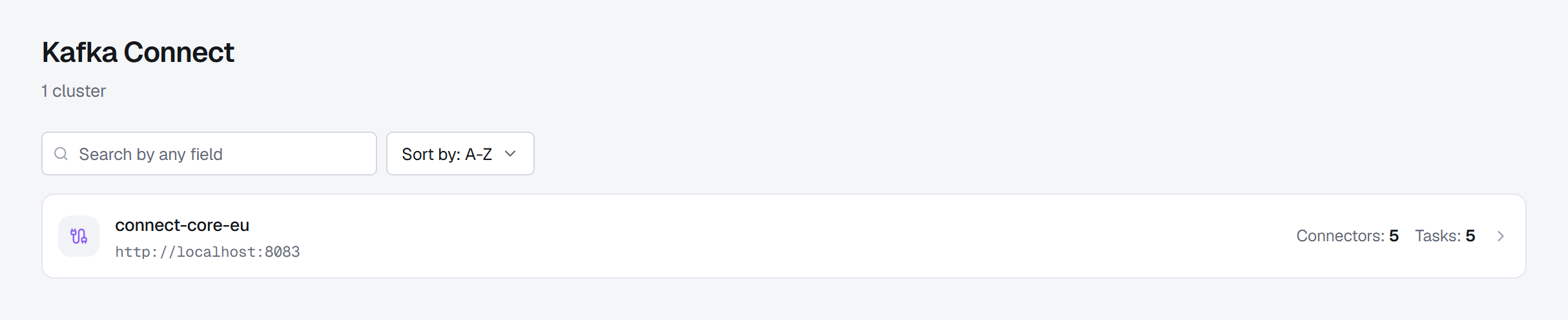
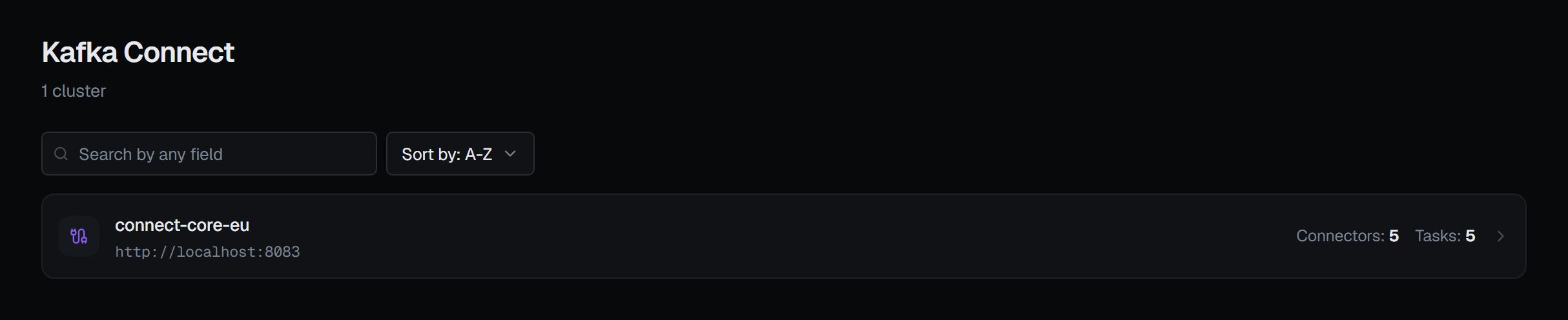
A Connect cluster belongs to the Kafka connection whose cluster it works against, and a connection can have as many as you run — most estates have more than one, and pretending otherwise would make the second one homeless.
The first one is registered from the cluster's row in the connections list, under Kafka Connect. Until one is, the Connect entry in the navigation is shown greyed out, and hovering it says that no Kafka Connect cluster is registered for this connection.
Registration takes a name, the worker's REST address and, if it needs one, a credential: basic authentication, a bearer token, or a client certificate (with a passphrase, for an encrypted key). A CA certificate can be supplied independently of the credential, for a worker whose endpoint has its own chain.
The Advanced tab also takes HTTP headers sent on every request, whose values are kept as secrets like the password, and, optionally, the address the worker itself uses to reach Kafka when it differs from this connection's. BROKA gives that address to a connector's schema history (below).
Skip SSL Check turns verification off completely: neither the certificate's chain nor its name is checked. It can be turned on only where the connection's environment allows insecure TLS; elsewhere it is disabled, and the dialog says to upload the CA certificate instead.
While you type the address BROKA performs a real TLS handshake and reports what came back, distinguishing a certificate that does not verify from a host that did not answer from "we could not run the check" — three different problems that deserve three different answers.
Test connection proves the whole path. Testing a cluster you have already saved re-tests the
stored credentials rather than asking you to retype a secret you no longer have. If you retype one secret
while another is still stored, Test connection is disabled and says why: the stored secret never comes
back to the form, so the test would send it blank. Save first, or retype that one too. Testing a change,
and the certificate check made as you type an https address, need connections.manage on the
connection, as registering a cluster does. A test that skips certificate checks in an environment that
does not allow it is refused, and the result says so.
Credentials are encrypted and never returned. When you edit a registration, leaving a secret field or a header value blank keeps the stored one — the form tells you which secrets are set without ever showing them. Unless the address changes: a new scheme, host or port, or switching certificate checks off, clears every stored secret left blank, so a credential is never sent somewhere it was not typed for. The form says so beside each one, and a required one has to be typed again before you can save.
Removing a registration unregisters it from BROKA. The Connect cluster and its connectors are untouched — the dialog says so, because "remove" next to a list of running connectors deserves to be unambiguous. It asks for a reason, in every environment.
The connectors
Each Connect cluster shows its connectors with what you need to triage: the connector's own state, how many tasks it has, and how many of those tasks have failed. The list refreshes itself while you watch it.
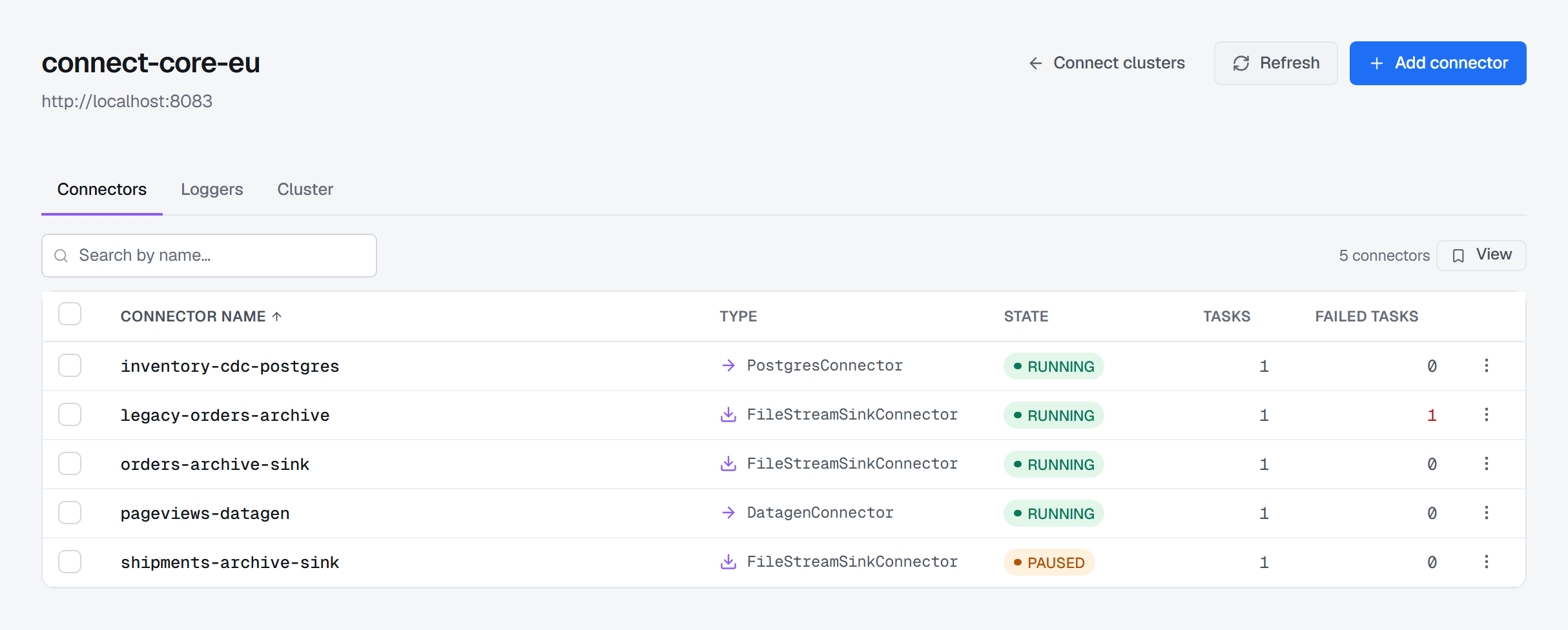
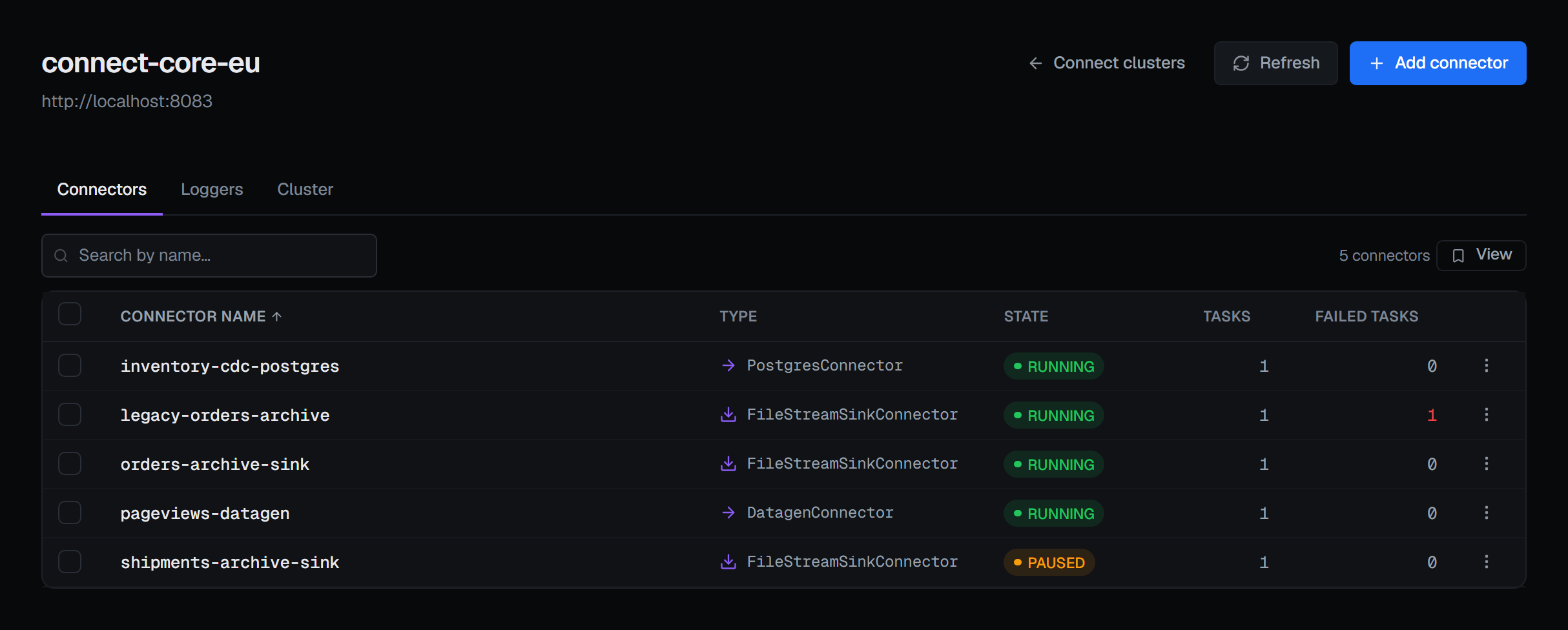
A connector's state and its tasks' states are different facts, and BROKA reports both rather than
collapsing them. A connector reading RUNNING with one failed task is not a display error — it is
the single most common real failure in Connect, and the one a single status column hides. The failed
count is the signal, and it is coloured only when it is not zero.
Sources and sinks are marked by direction, and the connector's plugin is named by its class. The search box matches a connector's name or its class.
A role that may not read a connector's configuration (see Configuration) still sees the list, with a lock beside each name that says why; its rows do not open.
Operating them
Pause, resume, restart and remove are on each connector, and all four can be applied to a selection at once. Stop is on the connector's own page.
Restart restarts the connector and all of its tasks. That is what an operator almost always means, and BROKA does not make you discover that the connector restarted while the failed task did not. A single task can also be restarted on its own, from the connector's task list — which is the narrower fix when one worker is unhappy and the rest are fine. A failed task's error trace opens there too, under Show error.
Restart asks first wherever it is offered — on the connector's page, in a row's menu and as Restart selected — because a restart re-delivers in-flight records from the last committed offset, so a sink may see duplicates. Stop, on the connector's page, asks first too: a stop releases the connector's tasks. Remove asks first, and names what it deletes from the Connect cluster. Removing and stopping ask for a reason in every environment, and the reason is stored on the audit entry.
Adding a connector
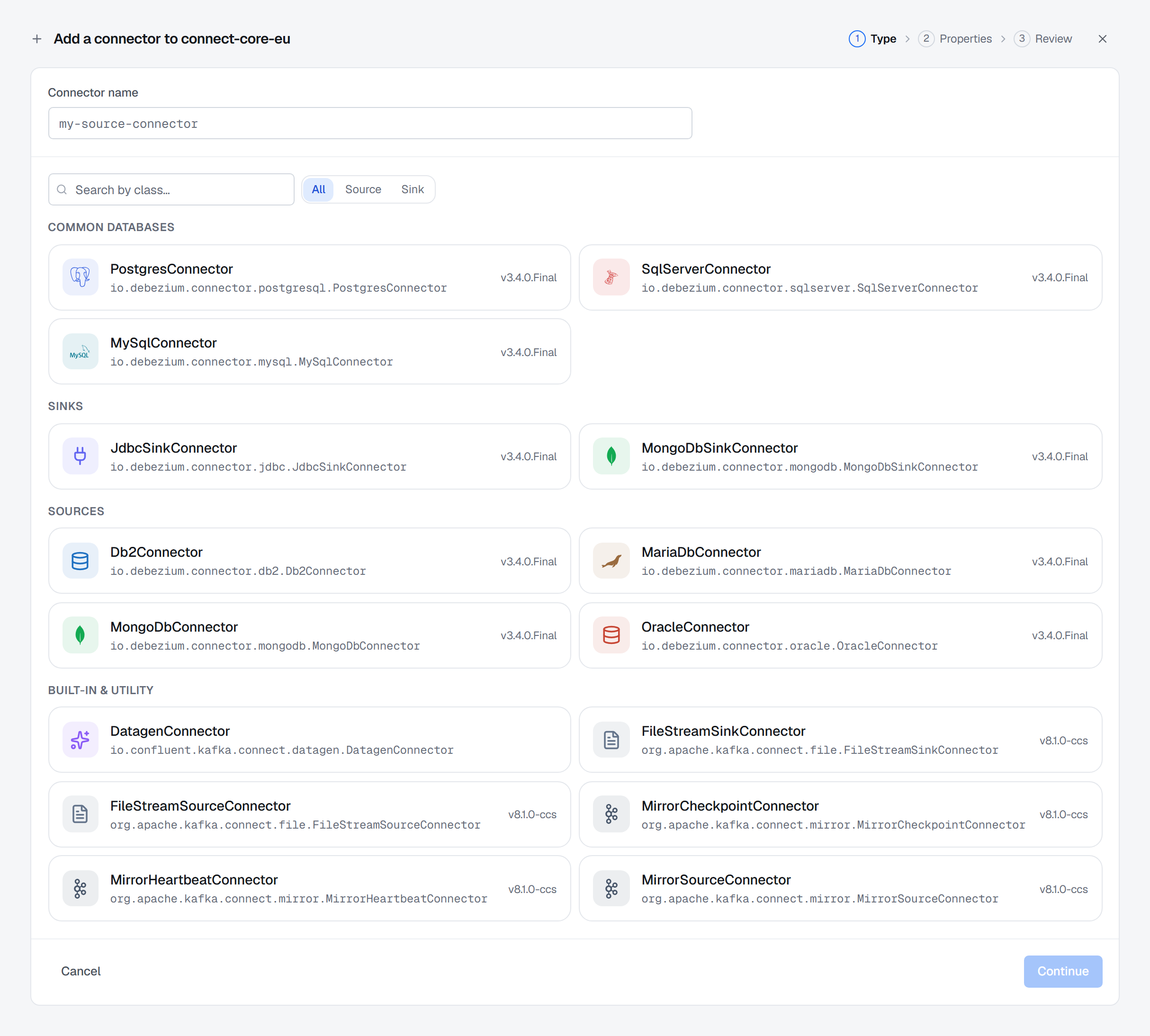
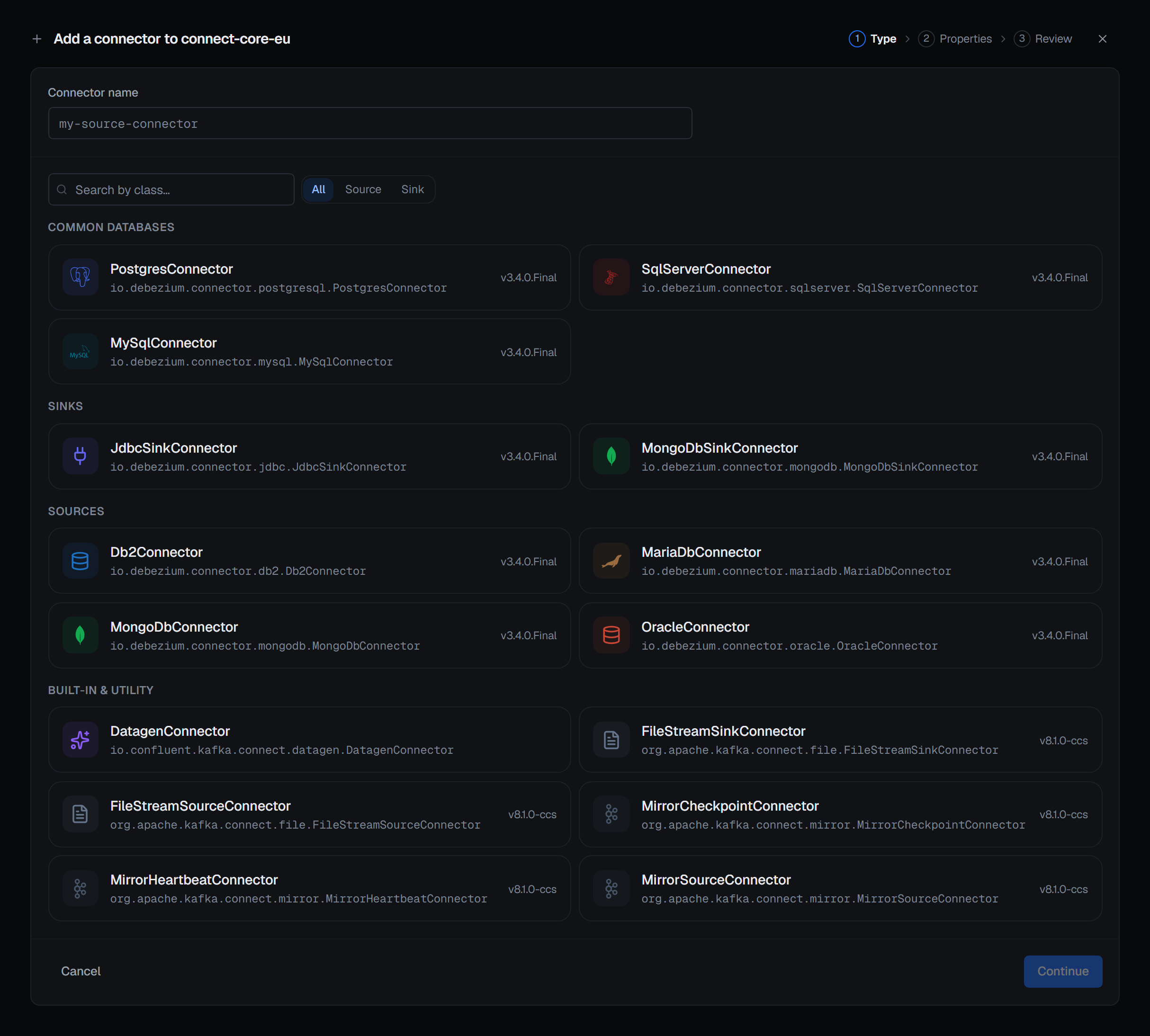
Add connector opens a three-step wizard. Type lists the plugins installed on the worker — common databases first, then sinks, sources and the built-in utilities, with a source/sink filter. Properties is the same plugin-built form as the Configuration tab below. Review shows the configuration with its secret values masked, before Create connector. A role that may not create a connector finds that button disabled, with the reason on it.
Configuration
A connector's configuration is read live from the Connect worker and rendered as a form built from the connector's own plugin — its groups, its field types, its defaults, its documentation and its validation. That means a connector BROKA has never heard of still gets a proper form, and the errors you see are the plugin's own.
There is a raw JSON view for when you want the whole thing at once.
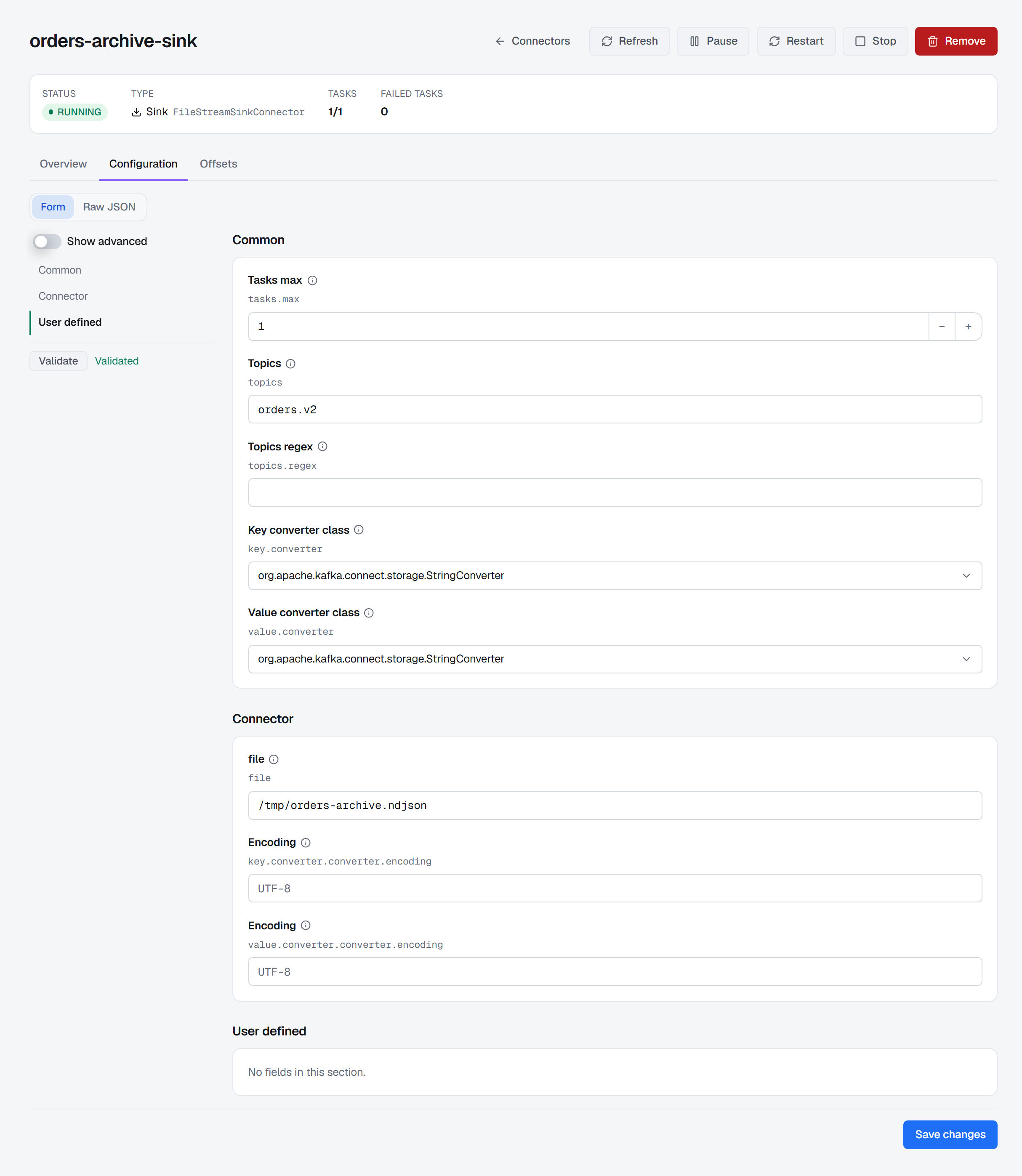
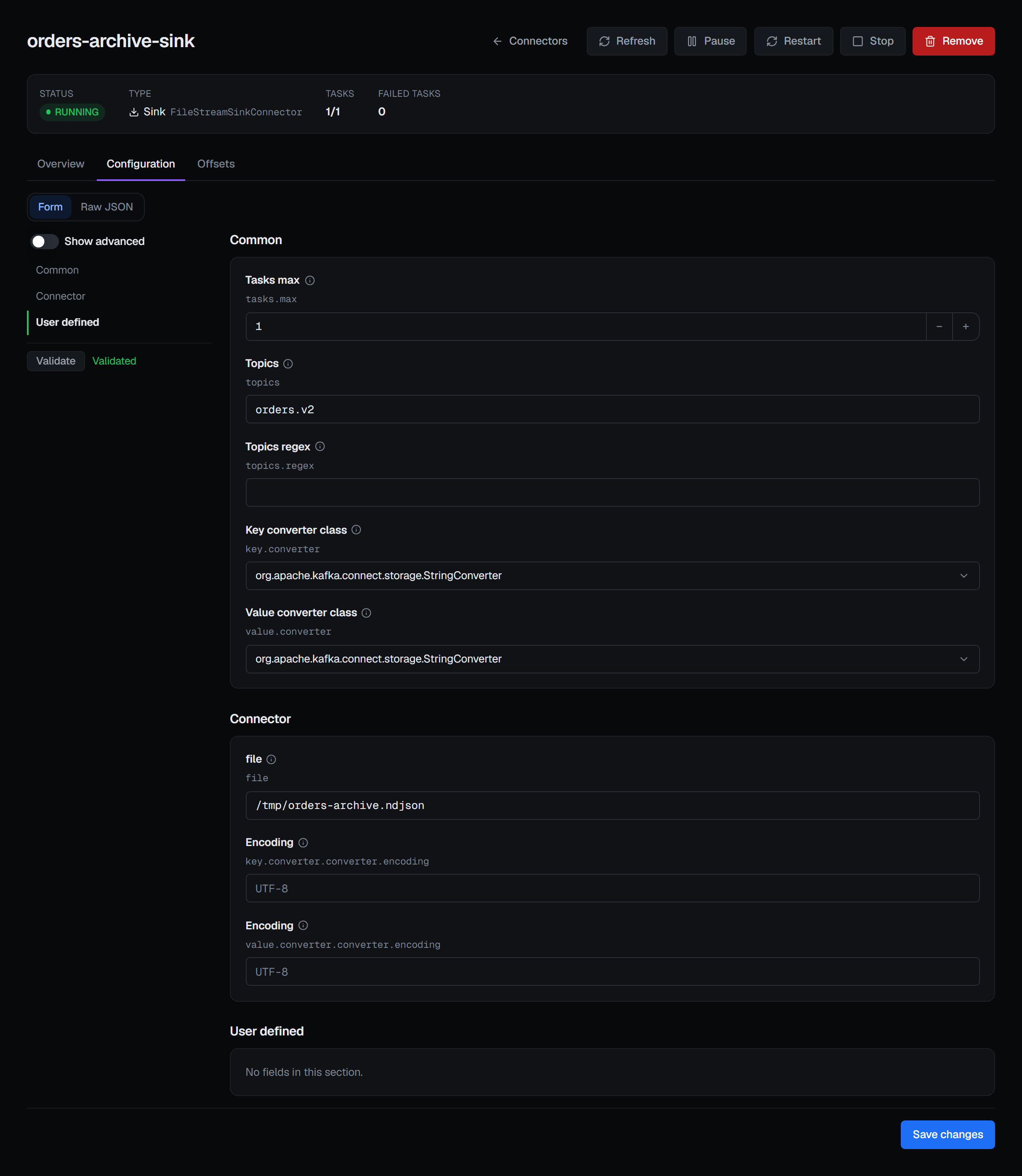
A saved connector's secrets never reach the browser. When BROKA reads a connector, every value it recognises as a secret — a password-typed field, a key named for a password or a secret, a JAAS line — arrives as a fixed-width mask that does not leak the length of the value. Saving with the mask left in place keeps the stored secret; type a new value to replace it. A value you type yourself is masked in both views as well, and the raw JSON view shows it only when you ask (Show secrets).
A config-provider reference, such as ${file:/run/secrets/db.properties:password}, is not a secret: it
says where the secret lives. It is shown as written, with Replace beside it, so a managed secret is
never overwritten with a literal one by someone who could not see what they were replacing.
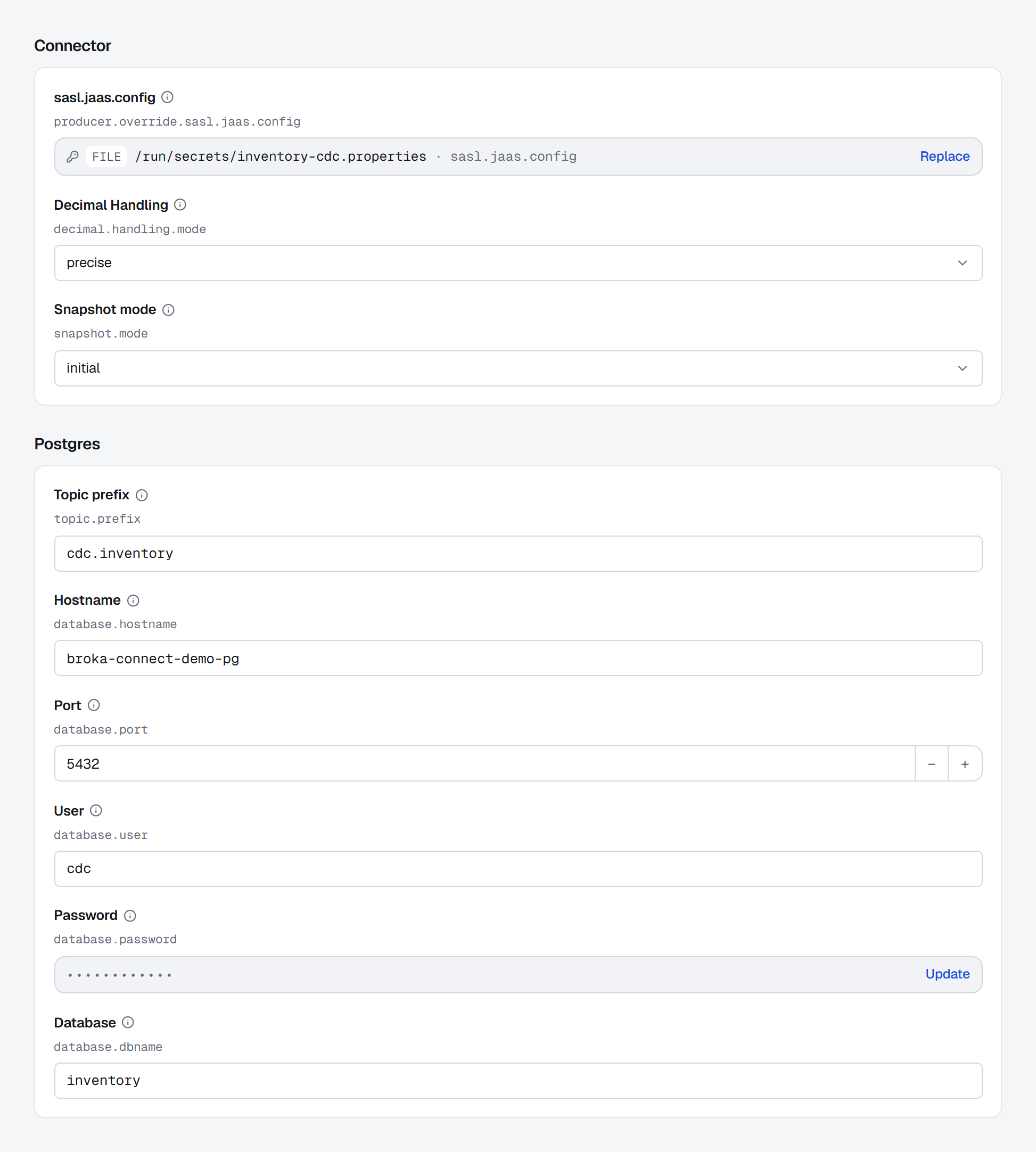
Reading a connector's configuration is recorded in the audit trail in Commercial, and in either edition needs the permission to change things rather than merely to look. With its secrets masked, a configuration still names hosts, users and topics, and a secret kept under a name nothing recognises is not masked. BROKA treats the read as the disclosure it can be.
Changing configuration writes to the worker directly. BROKA stores no copy of a connector, no history and no previous version — the worker remains the source of truth.
Schema history on a SASL cluster
A Debezium source that keeps its schema history in Kafka, such as MySQL or SQL Server, runs a Kafka client
of its own for it. BROKA fills in that client's bootstrap, security protocol and mechanism from the
connection, and names the history topic schema-history.<topic prefix> unless the configuration names
one.
When the cluster requires SASL, the form adds a Schema history section asking for a Schema history user and a Schema history password: an account of its own, which should be allowed to write only its history topic. BROKA does not lend it the credential it manages the cluster with, and a connector that needs the account and has none is refused on create and on save. The login is composed for PLAIN, SCRAM and OAUTHBEARER; for any other mechanism, the refusal names the two JAAS keys to set yourself.
Offsets
A connector's offsets can be inspected, edited and reset — the operations behind "reprocess from here" and "start this sink over". They require the connector to be stopped, which is Connect's own rule, and the page says so beside the disabled controls rather than failing the call. Both ask for a reason, in every environment, each in its own confirmation: Save offsets says that the edited offsets are written over the committed ones and cannot be undone, and Reset offsets closes once the reset is done.
Worker logging
The Loggers tab lists the worker's loggers and changes their levels live, without a restart — which is how you get debug output from a misbehaving connector on a running worker.
Levels cascade to child loggers, and BROKA reports how many were affected, so setting one level and finding you changed twelve loggers is information you get immediately rather than discover later.
The worker itself
The Cluster tab reports the worker's version and build, the Kafka cluster it is attached to, and every plugin installed on it with its version. That last one answers the question that starts most Connect work: whether the connector you are about to deploy is actually available on this worker.
What gets recorded
Registering, editing and removing a Connect cluster; creating, deleting, pausing, resuming, stopping and restarting a connector; restarting a task; changing configuration; altering and resetting offsets; and changing a log level — each is an audit entry.
Each one names the Connect cluster by its name, not by an internal id, because an entry someone reads a year later has to be legible without a lookup table.