

Message Search
Updated 16 October 2026 · applies to 1.3.1 · Commercial
Message Search reads several Kafka topics at once with the message browser's own filter, and returns the matching records with the topic each came from.
It opens from Kafka ▸ Message Search, beside Topics. In Broka Community the entry is there, tagged Commercial, and opens a page that says what the search does.
Choosing the topics
The first control says how the topics are chosen:
- Topic names, the default — typed one at a time, each added with Enter; the field suggests the cluster's topics as you type. A name the cluster has no topic by is reported and the others are searched.
- Name pattern — every topic whose whole name matches a regular expression, as Kafka's own clients
read a subscription pattern:
orders\..*matchesorders.eu, notbig.orders.eu. Topic names are case-sensitive, and so is the pattern. - A group's topics — every topic a consumer group has committed offsets on or is assigned.
- All topics — every topic on the cluster.
Internal topics — __consumer_offsets and any other name starting with two underscores — are searched only
when you type their name.
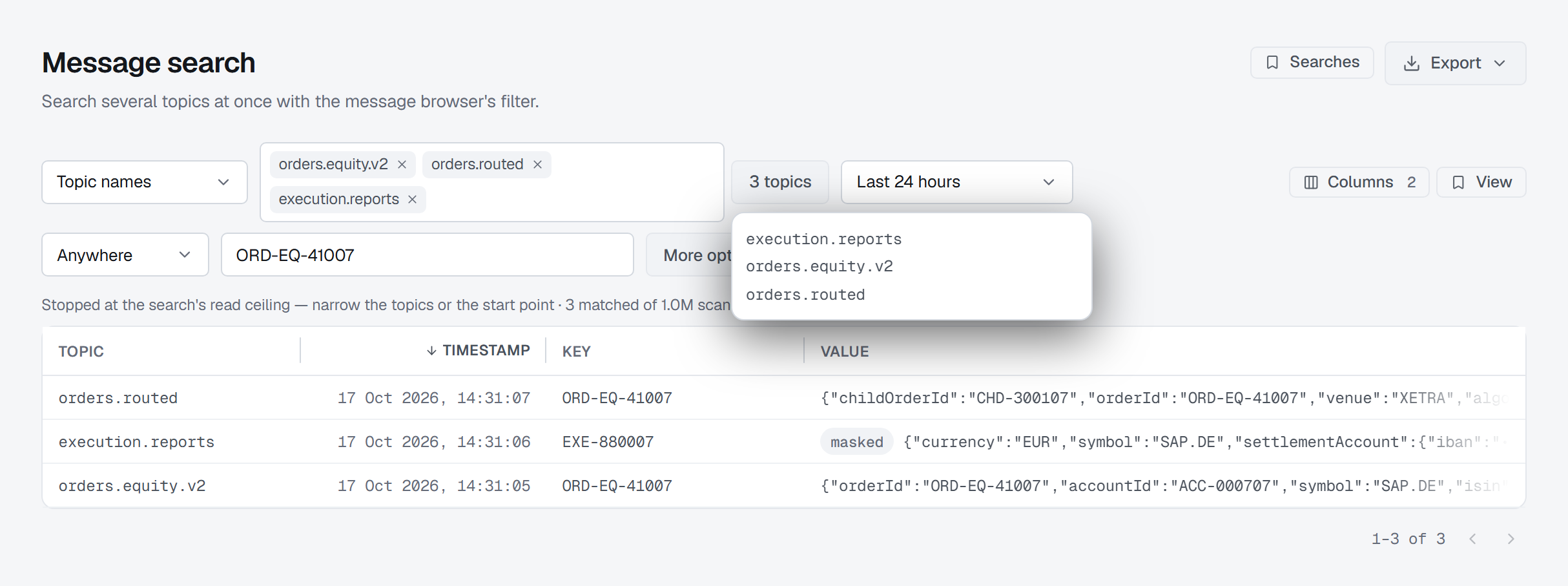
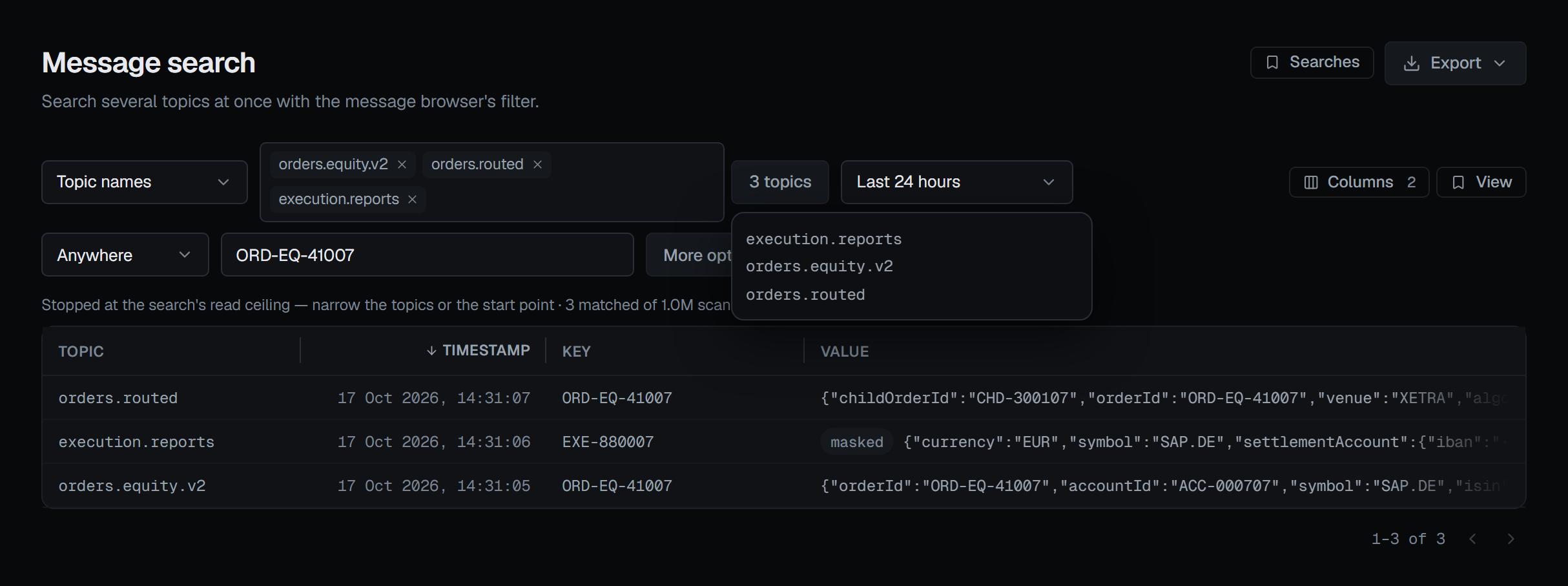
The button beside the field says how many topics the search will read, before you run it; open it to see them. One search reads at most 50 topics. A set that names more is refused rather than cut short, so narrow the pattern or the list.
Topics you may not read
Each topic is checked as reading one topic's messages is: the role's Read messages permission, and the topic's own access — the same grants that let you read it on its Messages tab. Topics you may not read are left out of the search.
They are counted, not named: the status line says how many were not searched. When you typed the names yourself, it names them too. When none of the topics can be read, the search is refused.
Where to start, and what to look for
Last 24 hours, the default, starts each partition at its first record at or after that time, worked out when you press Run; Last 15 minutes, Last hour and Last 7 days work the same way. Most recent reads the newest records of every partition of every topic, then to the end. From the beginning reads every topic whole. From timestamp starts each partition at its first record at or after the time you pick; a partition with nothing that recent has nothing to read.
There is no offset start point: an offset is one partition's position, and across the topics of a search the same number means nothing.
The search box and More options are the message browser's own, and work as they do there. The box looks in the key, the value and every header by default, so an order id is found wherever it is; Search in narrows it to one of them — see Filtering messages and Reading messages. A filter is tested on the records as you are allowed to see them: a masked field is matched masked.
How much a search reads
Stop after, under More options, is how many matching records to return. A search also stops when it has read as many records, or as many bytes, as one search may, or when it runs out of time — the status line says which.
While a topic is still being read, part of the limit is kept for it, so a busy topic cannot take every match before a quiet one has been read. A topic that reaches its share waits, and goes on once other topics have finished.
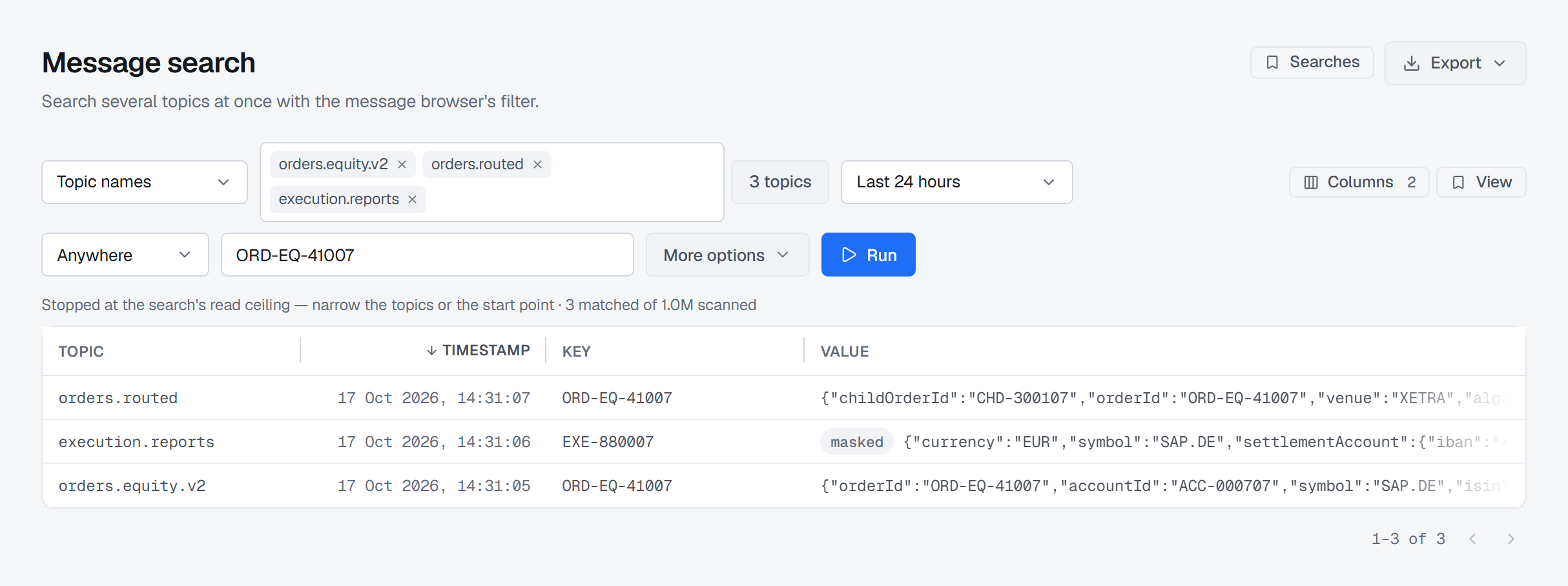
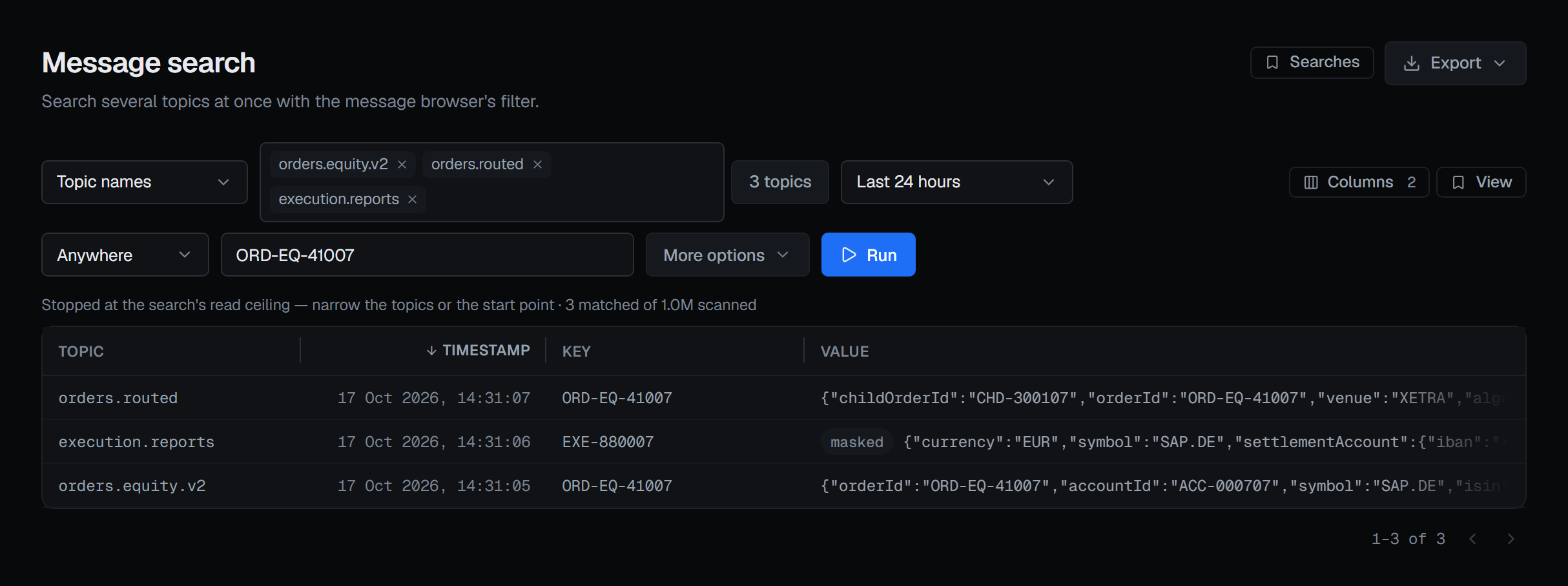
Each result row shows its Topic. Stop ends a search at once; what it found so far stays on the table.
Producing a result again
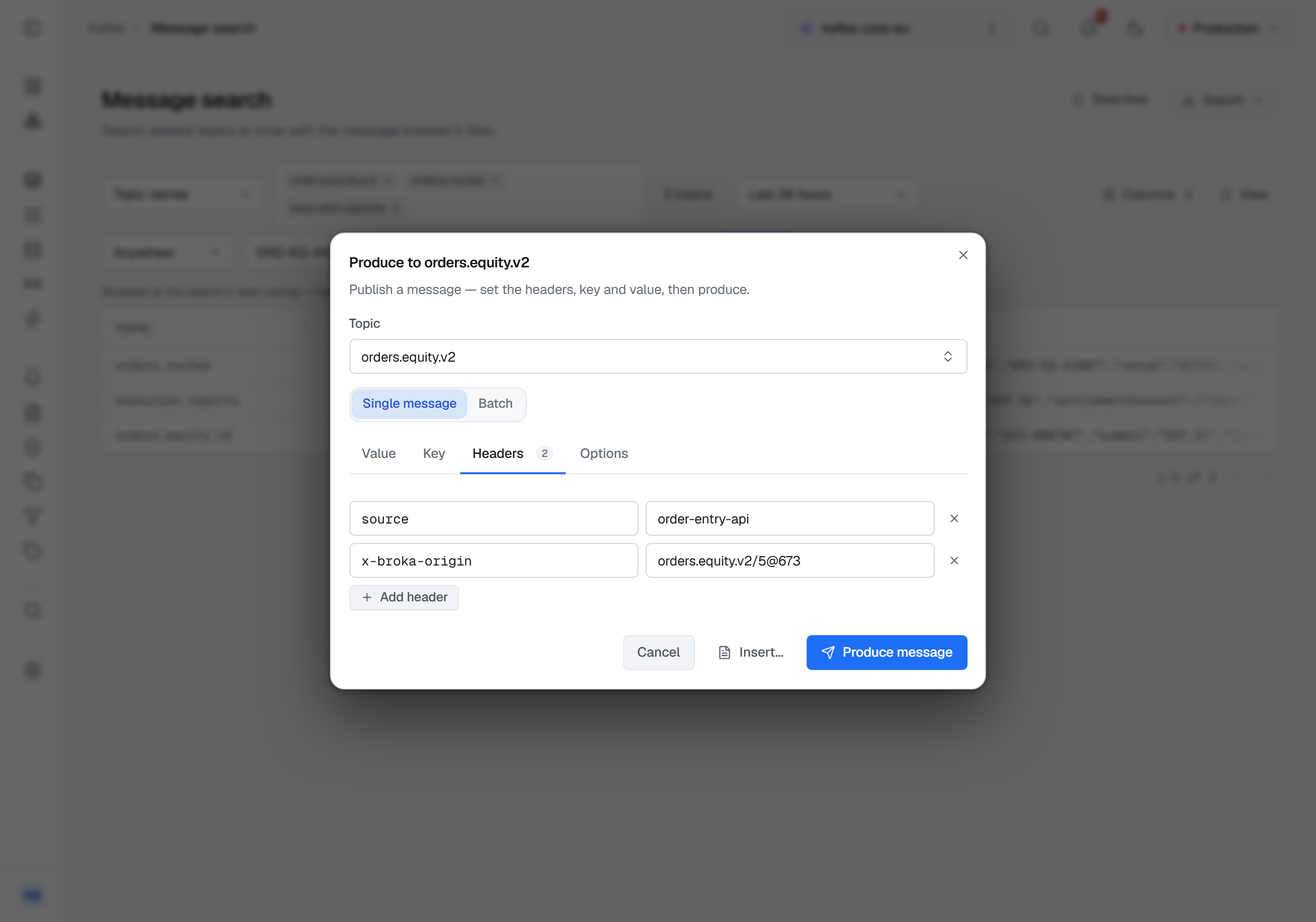
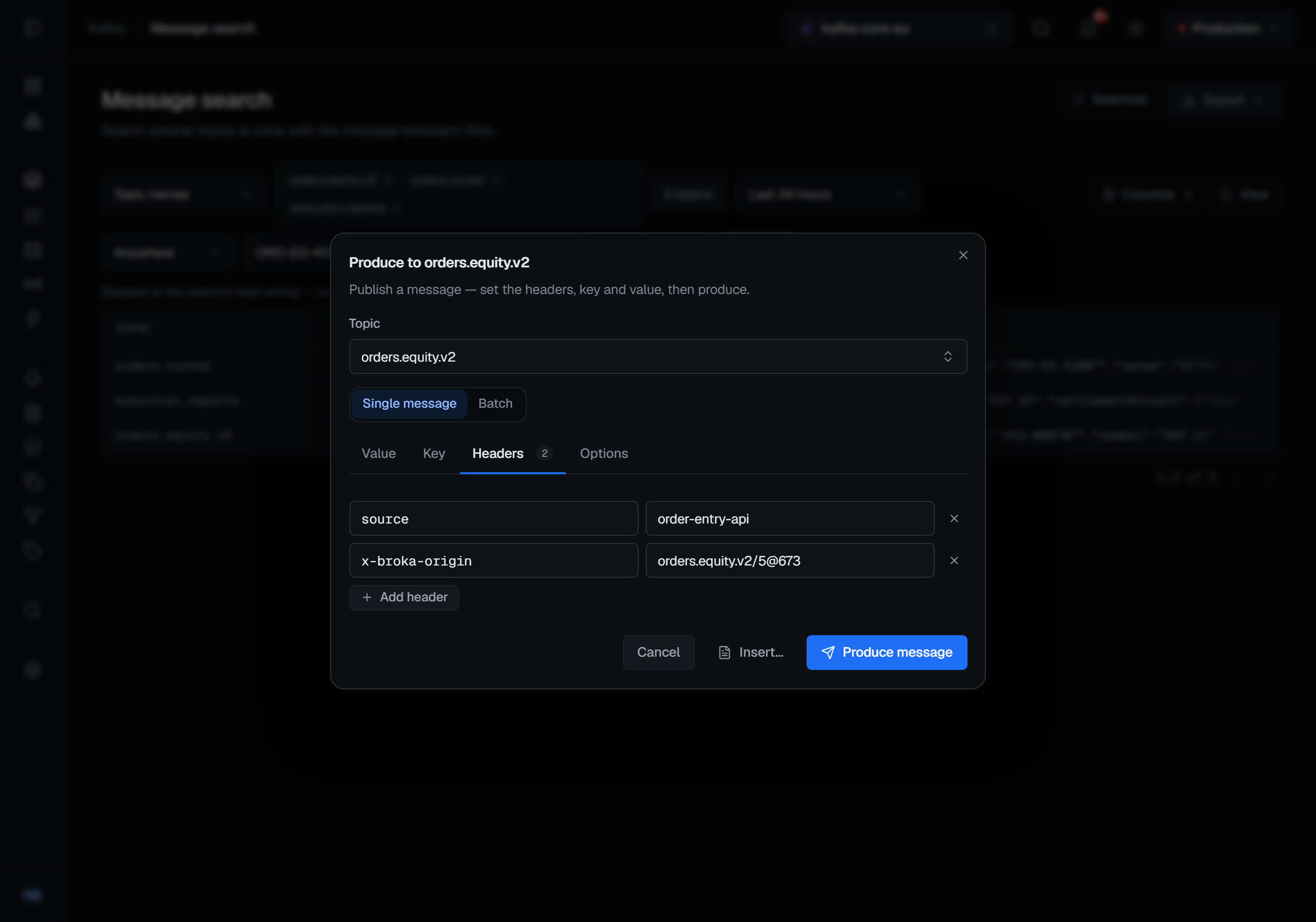
Open a result and choose Re-publish. The produce window opens with the record's key, value and headers,
and a Topic field: the record's own topic, or any other. The record also carries an x-broka-origin
header naming where it came from — topic/partition@offset — which you can remove before producing. The
audit trail records the origin either way.
Exporting the results
Export saves the results as NDJSON or CSV. The file holds the records on the table — every page, narrowed by the filter box as the table is, masked as you saw them — with the topic, partition, offset, timestamp, key, value and headers of each. In CSV the value is the text the record carries and the headers are one JSON object; nothing is flattened.
The export is recorded in the audit trail before the file is written. If it cannot be recorded, no file is saved.
Saved searches
Searches keeps the topics, the start point and the filter under a name, for yourself, a team or the whole organisation, and runs them back onto the toolbar. The table's columns and widths are saved separately, with View, as on every list.
What the audit trail keeps
A search is recorded when it opens — the topics it reads, how many were left out, the start point, the limit, and whether a filter was set and where it looked, never the filter itself — and when it ends. Each topic it read from is recorded as its own read, as if you had read that topic alone, so a search counts towards the same bulk-read alerts.
Permissions
The search needs Read messages and access to read each topic; exporting needs access to the topics in the file. Producing a result again needs the produce access of the topic you send it to.